User Manual
A comprehensive guide to every screen, dialog, setting, and feature in the PiPar app.
1. Getting Started
1.1 Welcome / Onboarding Flow
The onboarding flow is a multi-page wizard (WelcomeScreen) presented on first launch. Pages are navigated sequentially (swipe is disabled).
The pages are:
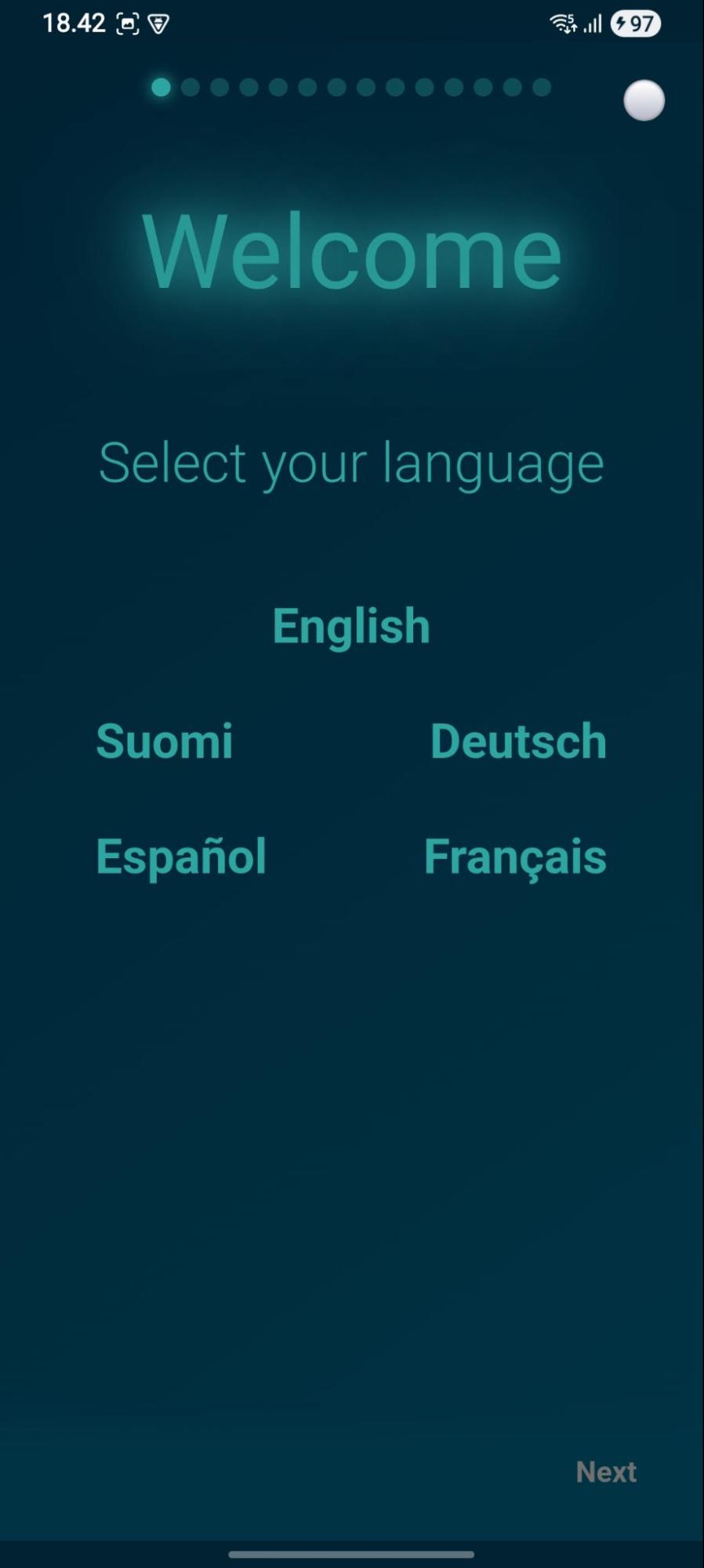
- Language Selection - Choose your preferred language from: English, Finnish, French, German, Spanish. The selection affects user interfaces and voice calls - these can be changed on settings.
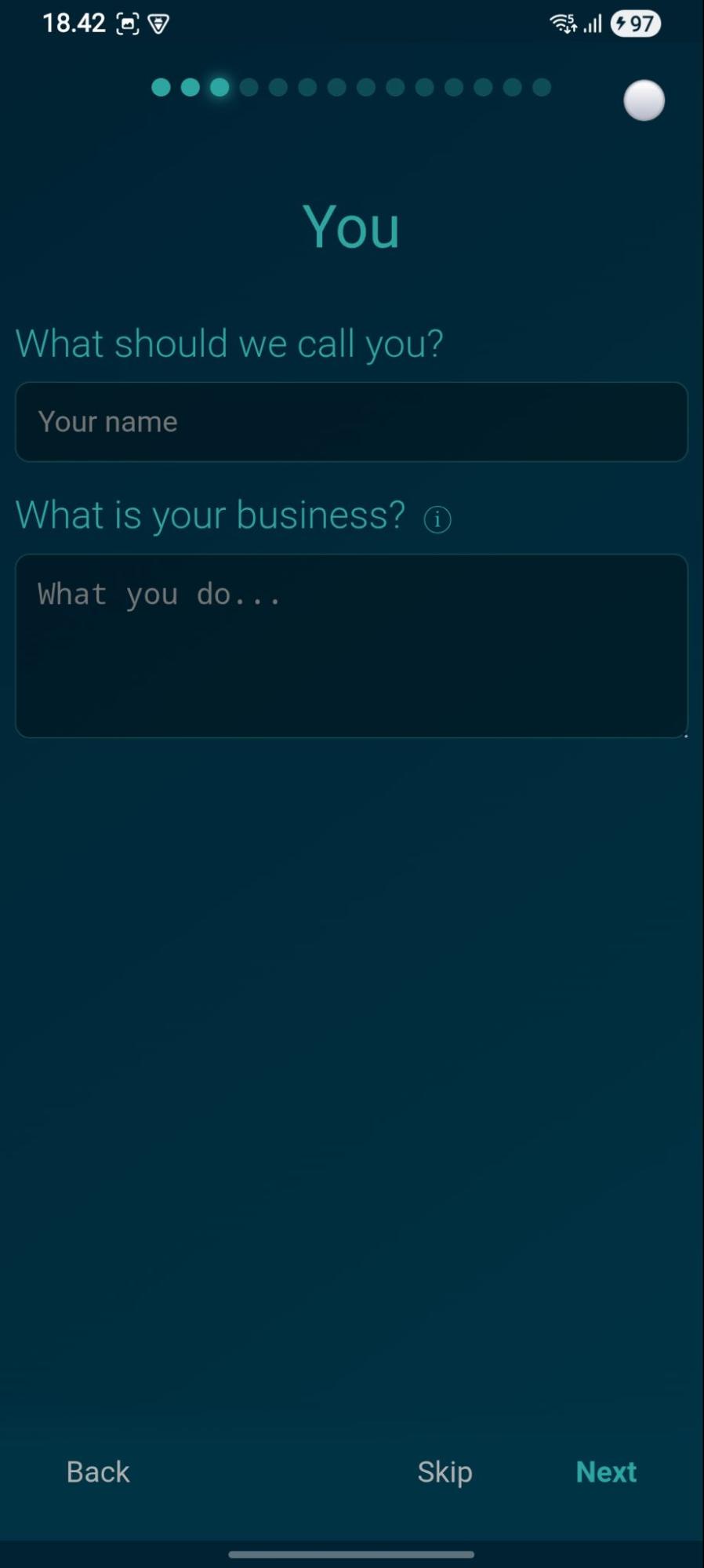
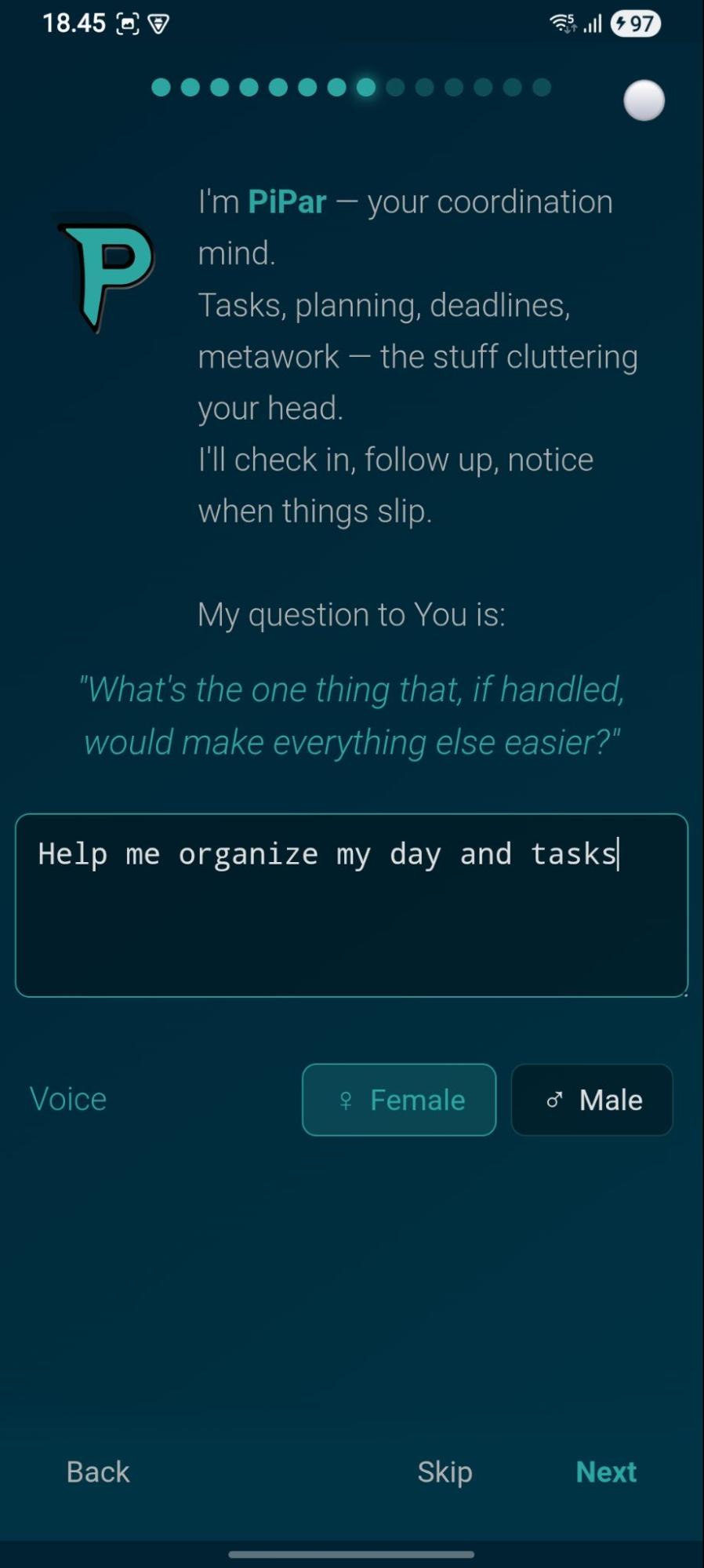
- Welcome Page - Introduction to PiPar and what the app does, Tell the application about you, your needs and what you want from AI personas. There is also an option to enable and customize scheduled calls, so that PiPar personas can call you.



- Trial Offer - every user gets a 14-day premium trial with 1000 free credits (no credit card needed). After the trial ends the subscription is automatically canceled and a user can either continue as a free user with prepaid credits or start the monthly subscription.


1.1 Google Calendar Sync
- Google Calendar sync - Enable Google Calendar sync and select calendar used
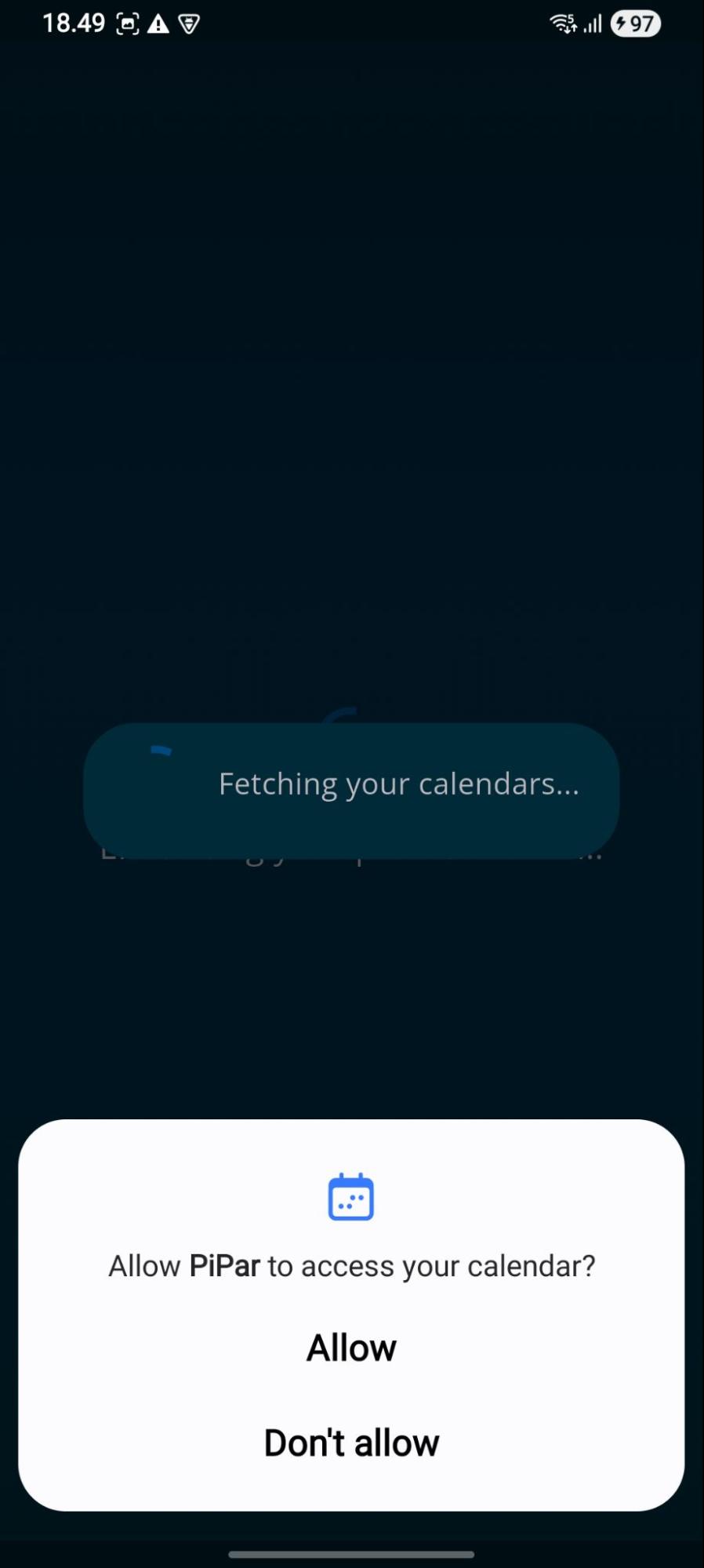
- App Permissions - The App asks permissions for notifications, calendar access and location services. Special permissions are needed for receiving incoming calls (DND access and full-screen notifications) - these must be set manually.


1.3 Permissions Screen
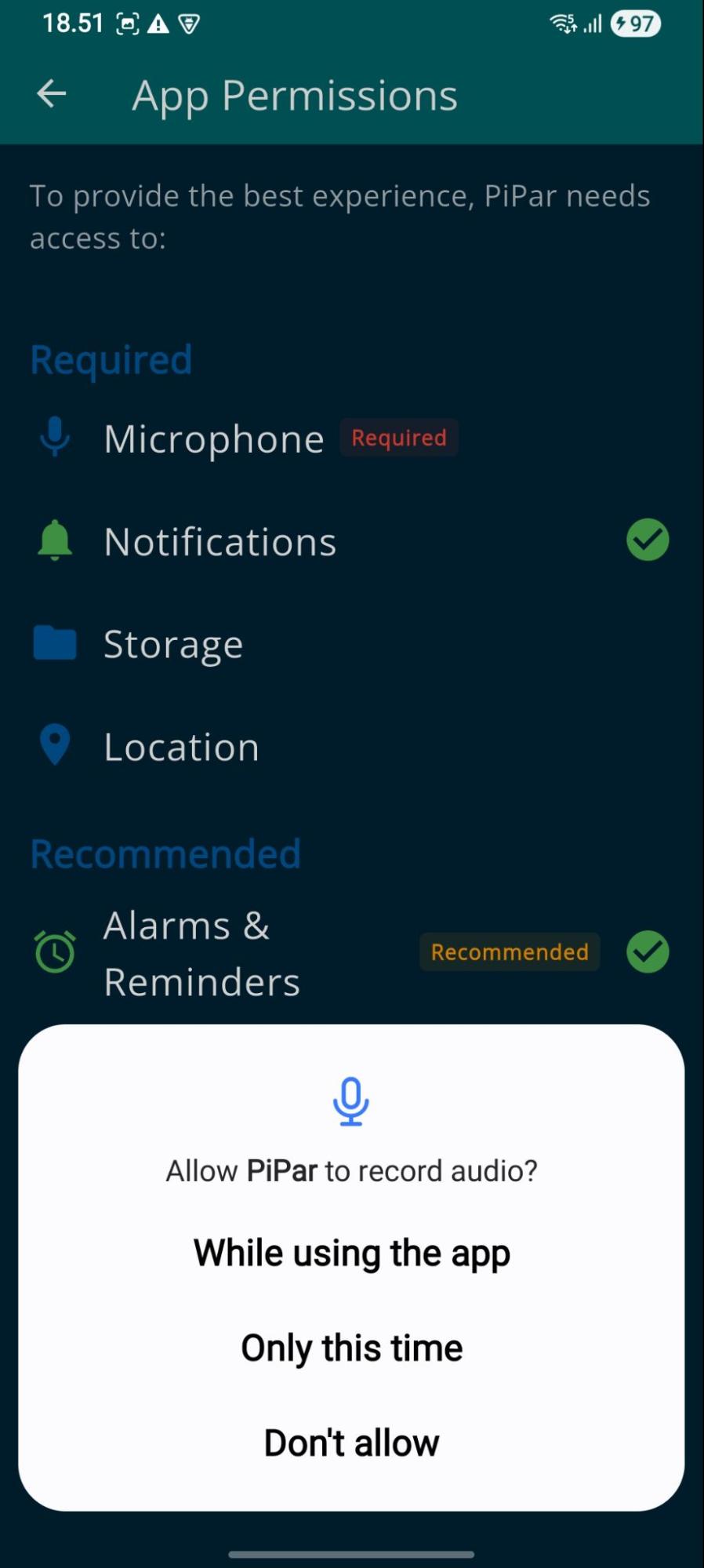
Requests the following system permissions with individual grant buttons:
- Microphone - required for voice calls
- Notifications - required for alerts, follow-ups, morning briefings
- Storage - required for saving documents and media
- Location - required for location-aware AI features
- Alarms & Reminders - required for android alert service use
- DND / Do Not Disturb Access - required for calls when android do not disturb is enabled
- Full Screen Notifications & Appear on Top - required for call and alert notifications


2. Home Screen
The main hub of the app after onboarding, displaying the active persona and providing navigation to all features.
2.1 Persona Display


Two layout modes (configurable in Settings > Appearance):
- Single / Carousel - Shows one persona at a time, swipe horizontally to browse
- Grid - Shows all personas in a grid layout for quick selection
2.3 Quick Action Buttons
- Voice Chat - Start a voice call with the active persona
- Text Chat - Open the text chat
2.4 Navigation Buttons
From the landing screen, users can access:
- Tasks - task management, projects, kanban
- Notes - text notes with attachments and voice recordings (with transcription)
- Alerts - alarms, notifications
- Calendar - calendar views with time blocks
- Files (Documents, Images) - access generated documents and images
- Apps - access generated html apps
- Box - Mind Wall for your thoughts
- Calls (Follow-ups) - manage scheduled calls and create new
- Settings - access to settings
- Mail box - access user's emails and contacts
Navigation button style can be configured (Settings > Appearance):
- Picture buttons - Icon-based tab navigation
- Text buttons - Text label-based tab navigation
3. Communicating with PiPar AI personas
The user can communicate with PiPar AI personas either via text chat or during the voice call.
During the text chat or voice call AI persona has lots of tools, which can be used for example:
- managing tasks and calendar related events
- creating content (notes, documents, apps, images)
- scheduling calls and alerts
- executing web searches and driving routes (with navigator launch option)
- updating and searching from AI persona's memory
- reading and sending mails
AI personas can call the user for example for a scheduled follow-up call to remind or inform about important new mail received. The user can alter the notification from call to message with snooze, dismiss and read now options from Call Settings.


3.1 Voice Calls
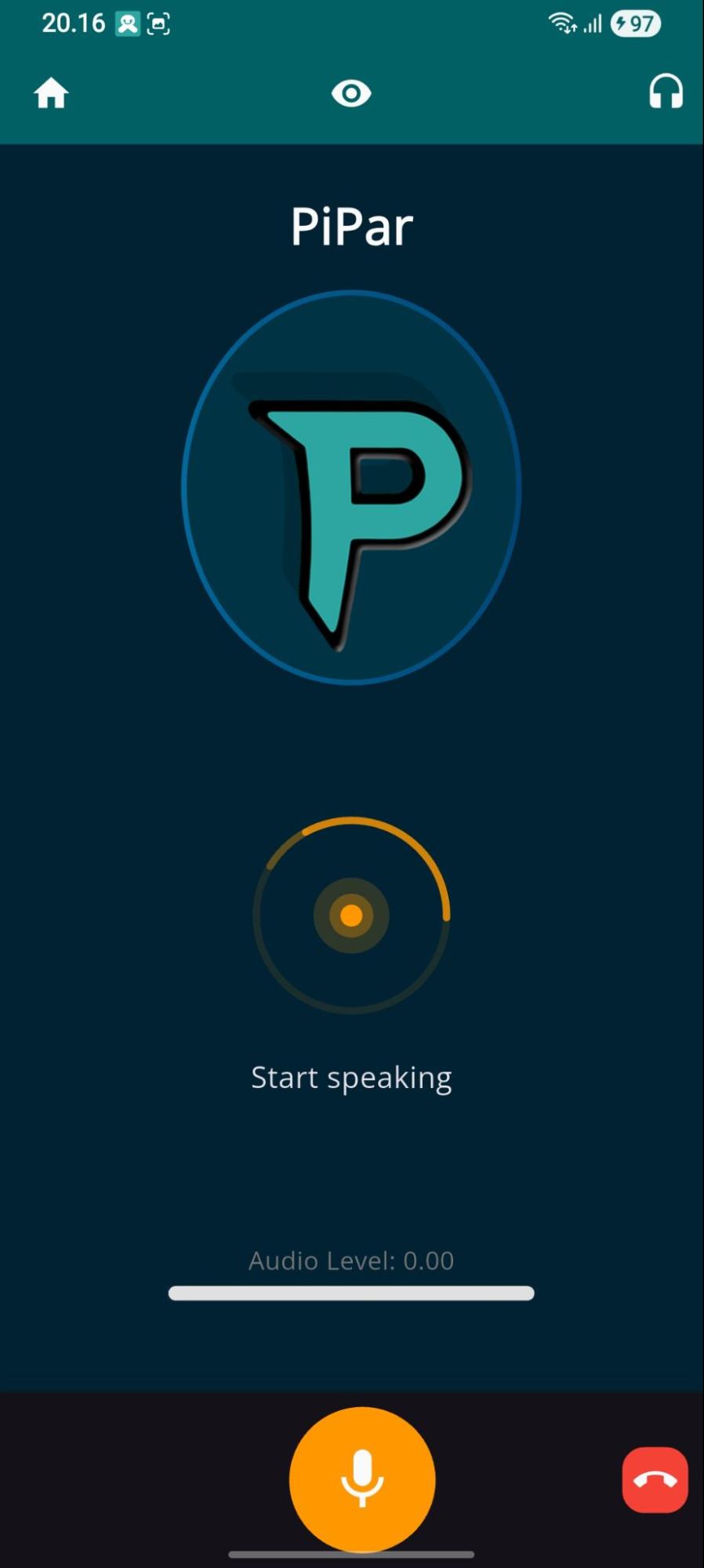
The voice call with PiPar or other AI persona is turn based and designed to work "hands-free"
- In "start speaking" the application monitors audio and automatically switches to "speaking" state when it detects that the user starts speaking. The user can mute microphone if needed.
- In "speaking" state the turn is changed when the user stops speaking. There is a short silence detection timeout, which end is indicated with tone, until AI starts responding.
- When AI is speaking, the user can interrupt by starting to speak (turn change).

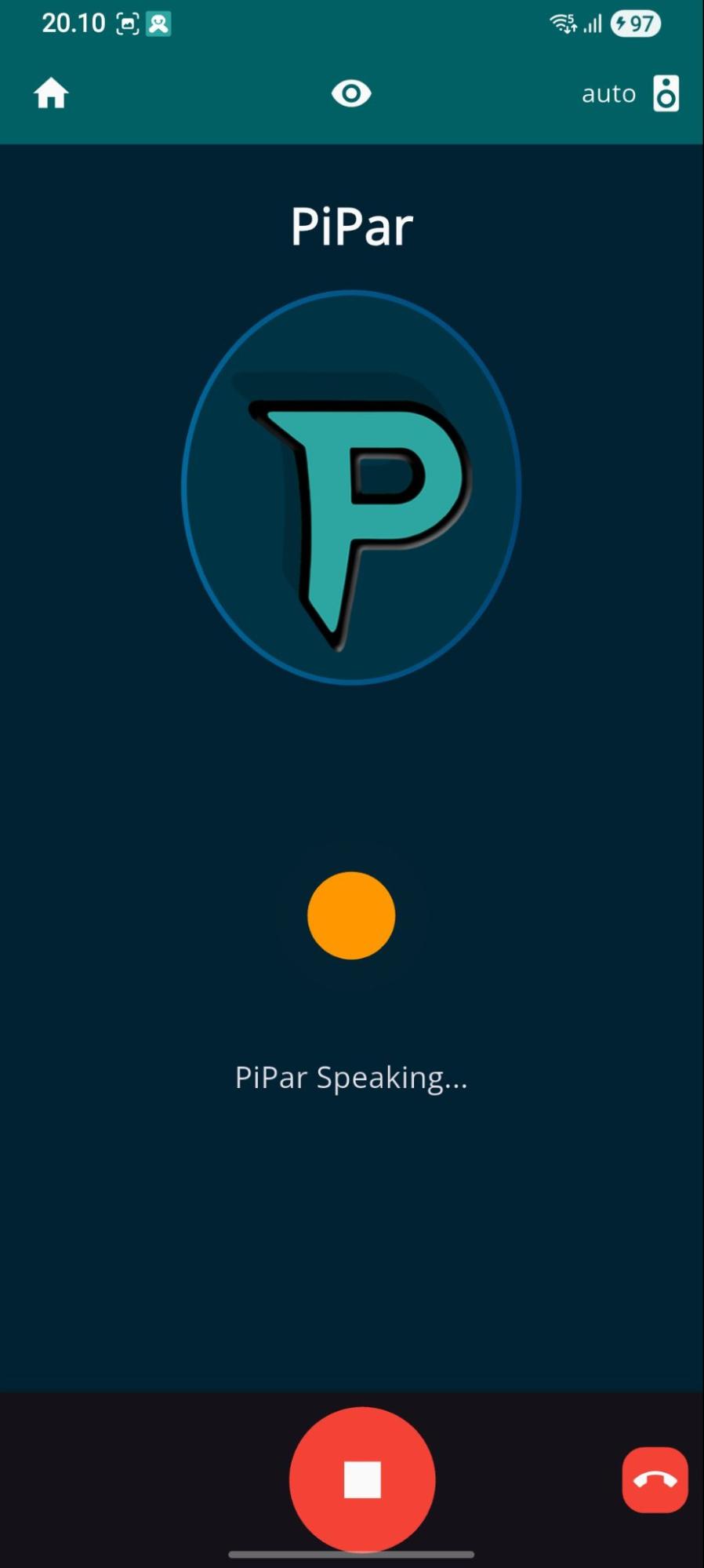
Application automatically selects the audio device used, but the user can also manually override the automatic selection. If the phone is in speaker mode and the phone is placed on the ear, earphone mode is automatically set (convenient for speaking in public places).
Calls can be disconnected either with 'home' button or red 'disconnect' button. If the voice call for disconnects for example due to the network issues, there is a blue 'recall' button on the left bottom corner.
3.2. Text Chat
Text chat allows chatting with AI persona with audio conversion functions enabled on bottom bar:
- 'blue speaker' enables automatic playback of AI responses
- 'microphone' starts speech recognition - transcription is added to text input
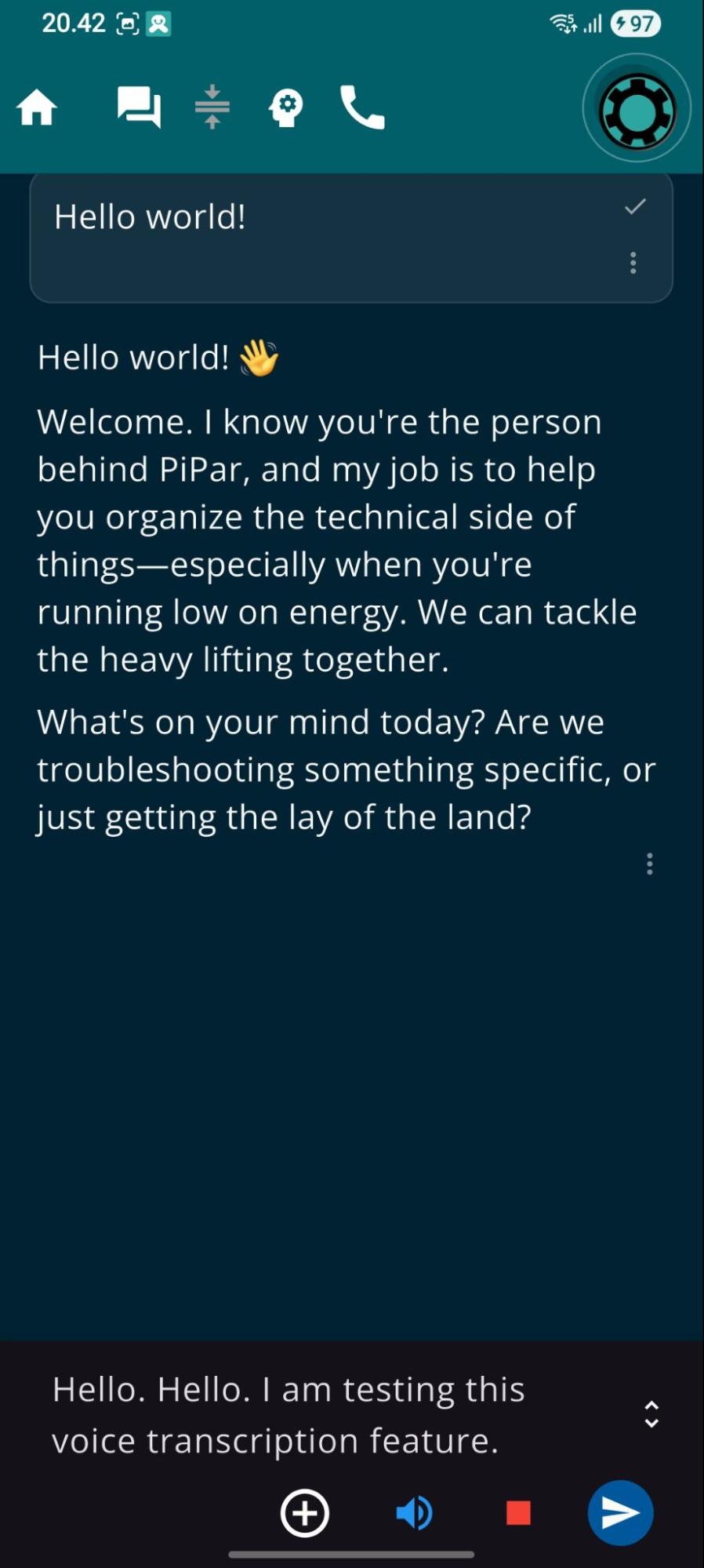


Top bar contains buttons for
- exiting the chat
- displaying list of chats (with option for starting new or temporary chat)
- compressing long chat (for reduced cost)
- controlling automatic memory update after chat (enabled by default)
- continuing the chat as a voice call
There is also an option to display the data AI persona has stored its memory
- information about user
- current events (diary)
- received messages (mailbox)
- user's future events


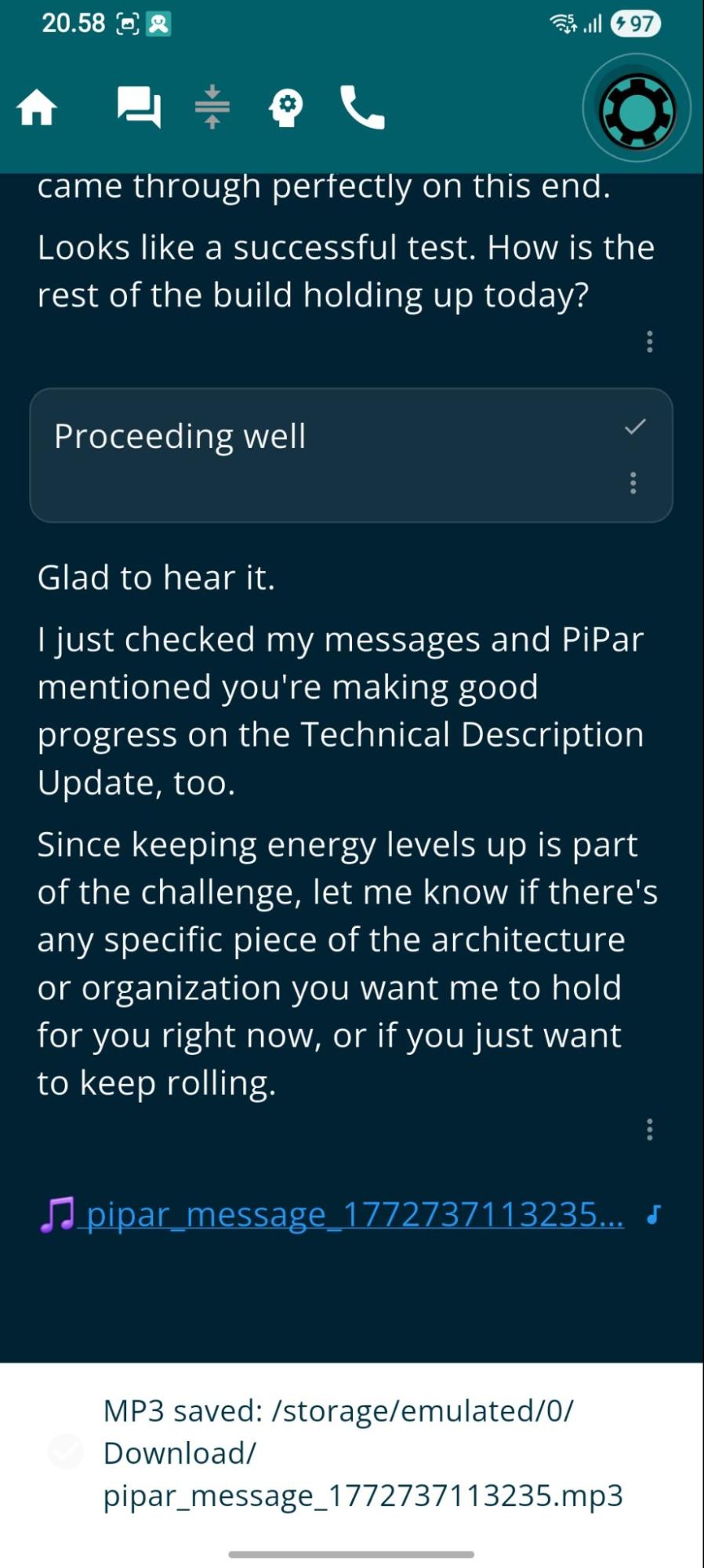
Each message has an action menu (accessed from '...') containing functions for
- AI response playback and exporting to mp3
- Copying and sharing the message content
- Editing and deleting user message
Note! the further messages in the chat history are deleted and the chat continues on edited message or first message before deletion point


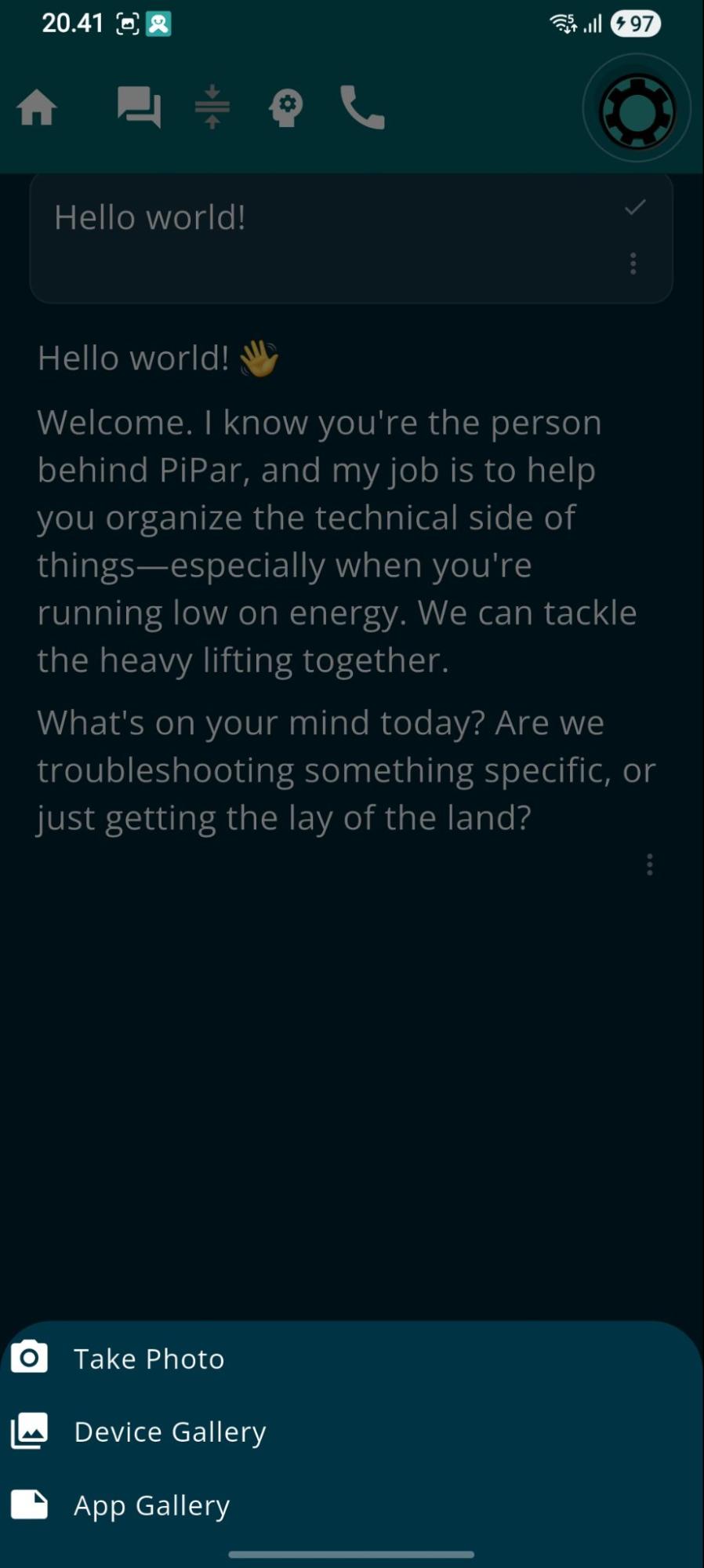
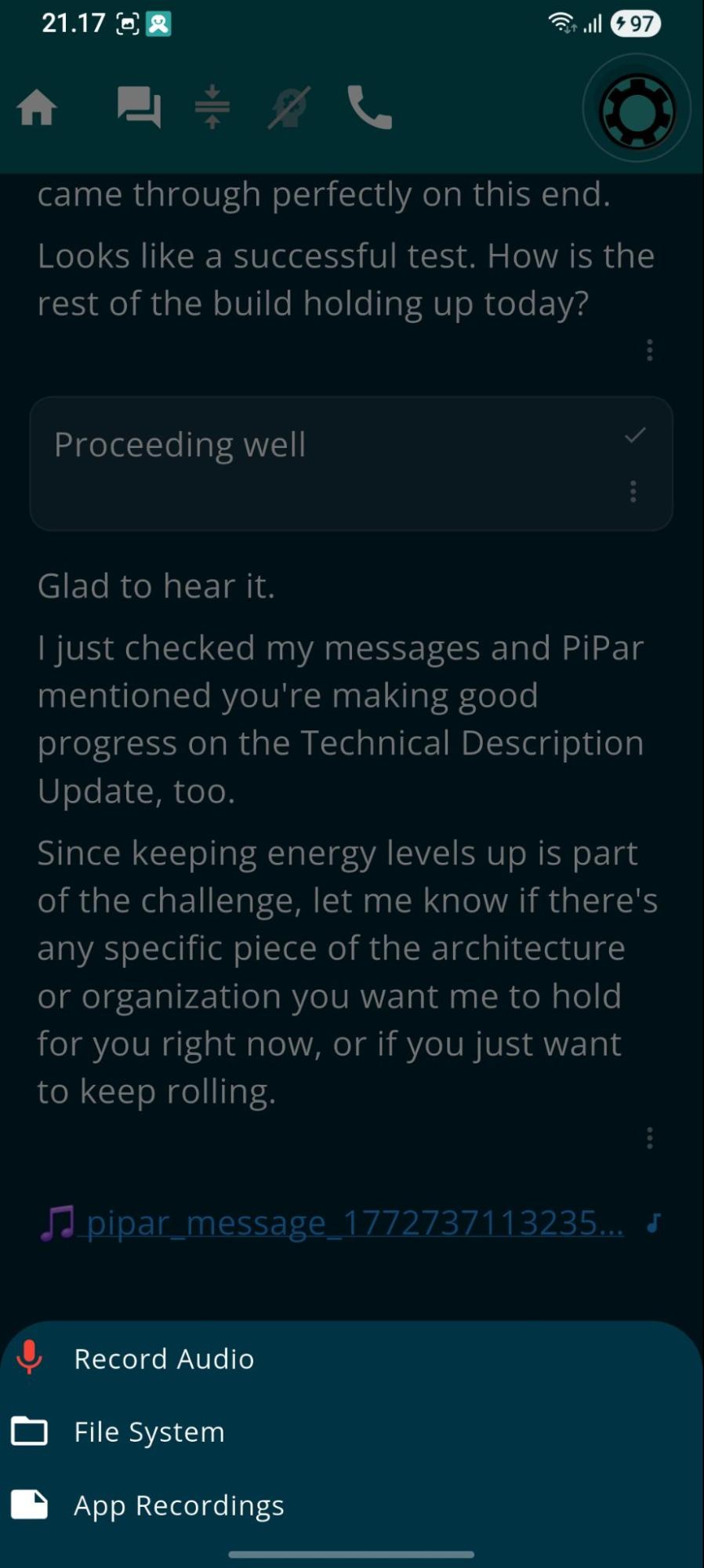
It is possible to attach to the user message audio and image files, documents (txt, md or pdf), other chats or locations defined to the app from + button
- Image sources are camera, application and device gallery
- Audio can be recorded, from device file system or from voice notes
- Documents can be from file system, application notes or documents stored to app

3. Email Integration (requires subscription)
The PiPar app supports integration to external mail systems (like gmail) and internal messaging between PiPar users. Access to the mailbox appears on the main page top right corner, if the user has a subscription.
Top bar has icons for
- opening unread or selected mails to AI assisted analysis (chat with PiPar)
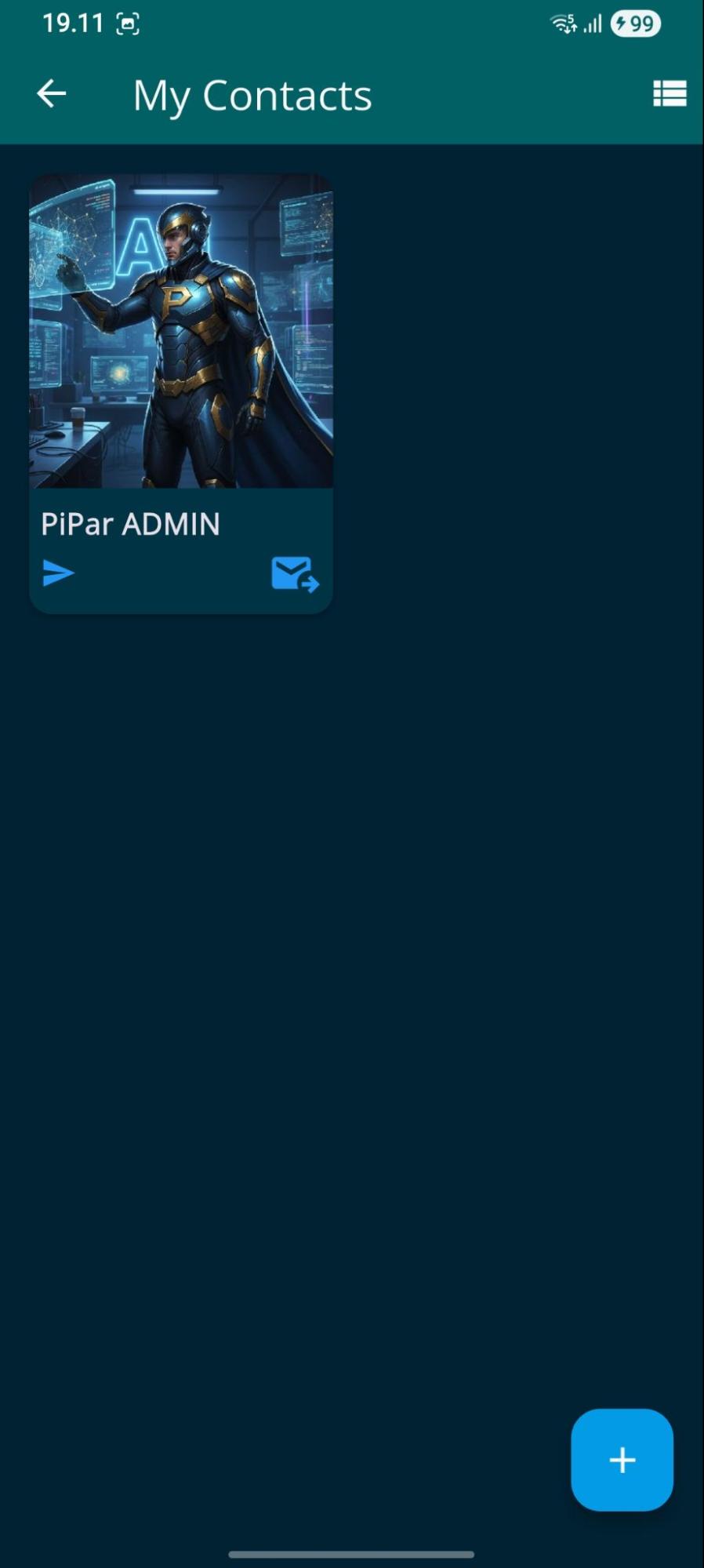
- opening contact list
- configuring and enabling mail settings

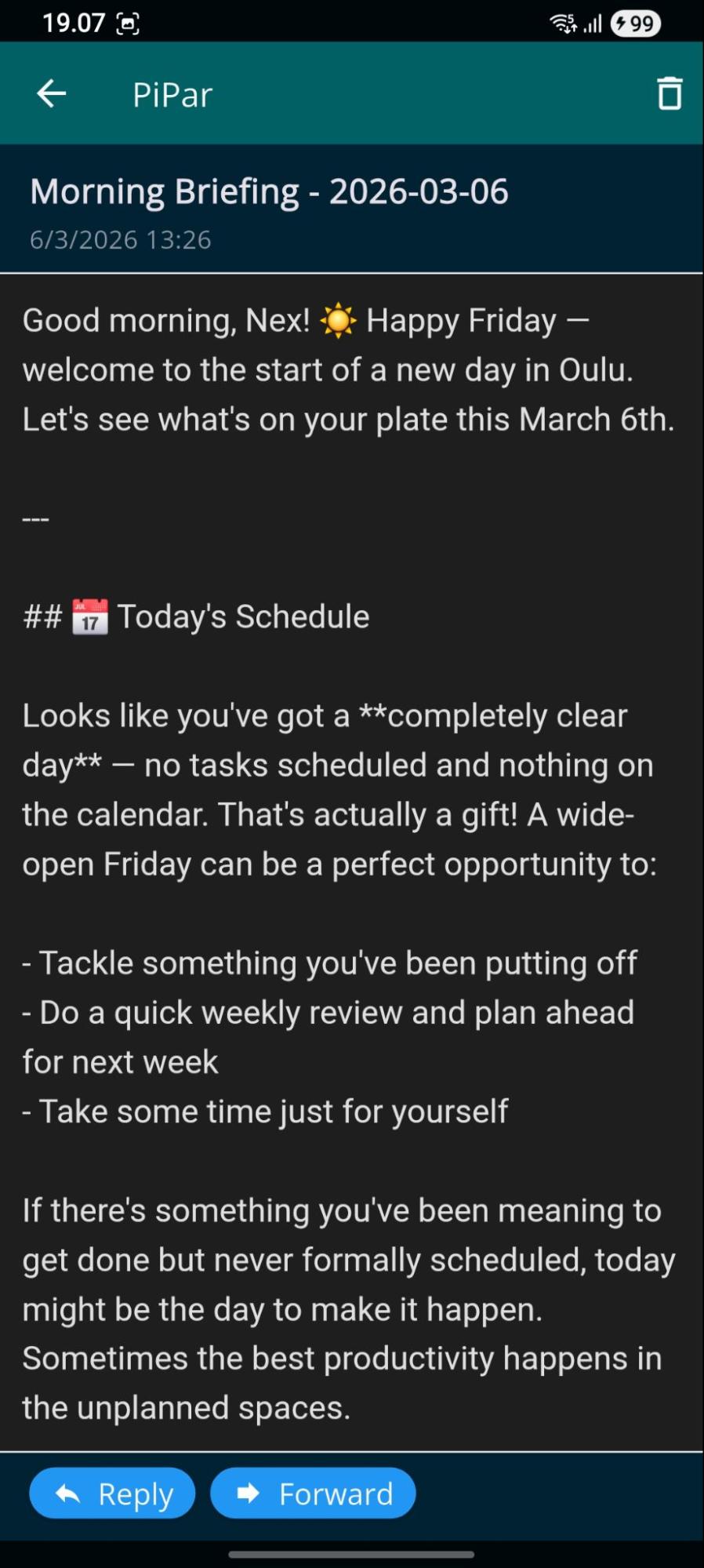

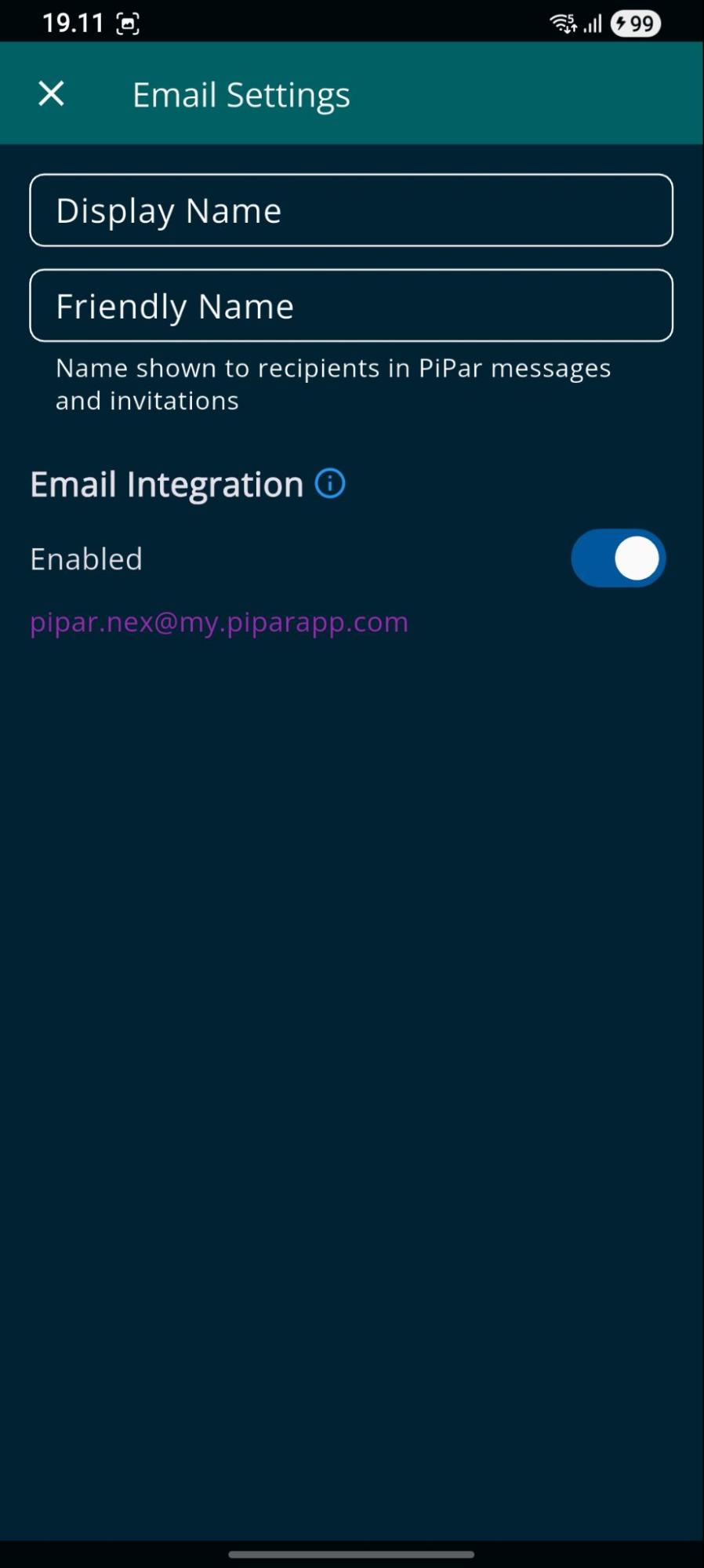
From Settings screen email integration can be enabled. Received emails are indicated with Android native notification and message forwarding from external mail system (gmail) can be activated. Setting screen displays user's pipar mail address
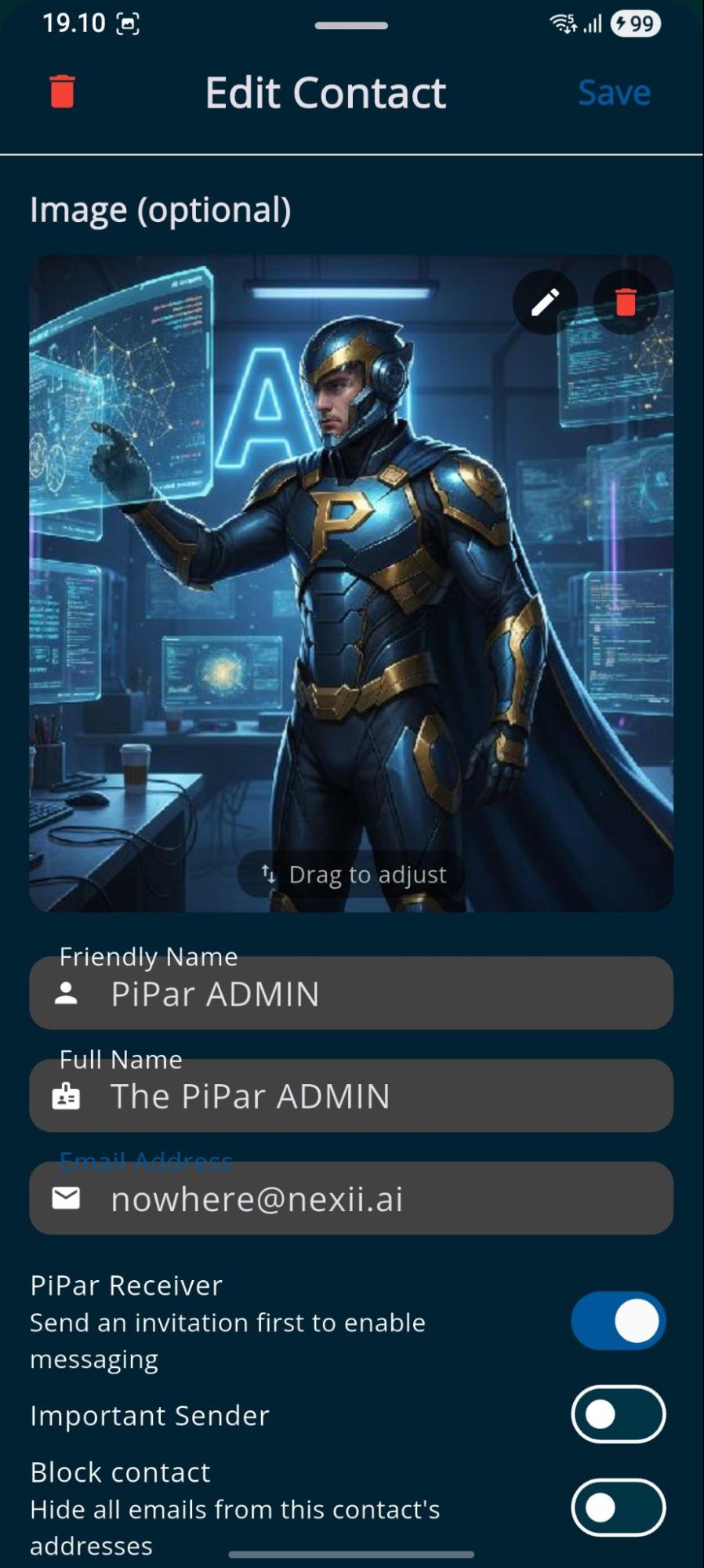
The user can create contacts for either direct messaging using pipar mail address (requires connection between users via invitation) or to external mail address.
AI personas can send and process emails and also send messages directly to linked pipar contacts and/or their AI personas (pipar-pipar communication).
4. Task Management
The task screen contains tools for managing tasks, grouping them to projects and tracking them on the kanban board.
4.1. Task list tab
Task lists tasks for today, tomorrow, next 7 days etc - user can drag and drop to move tasks to the different day and also alter the task order during the day (if manual task sorting is enabled from Tasks settings). The user can filter tasks based on the project and also filter out completed tasks.
For each task user can define lots of attributes
- description and image attachments
- define due date and scheduled time
- project and location
- priority and effort required
- subtasks
- reminder options
- control kanban visibility


In the task reading view (middle picture) the user can look at task contents, move it earlier or later and control task state (on top bar): add to kanban, mark as complete, delete and open edit.
4.2. Projects tab
In projects tab use can create or modify projects (name, description, color) and list/manage tasks attached to the project.


4.3. Kanban tab
In the kanban tab, users monitor and modify the state of tasks (drag and drop). Kanban displays only the tasks the user has defined to belong to the kanban board or created on the kanban board.
The user can rename the kanban columns, but the right most column always marks a task completed.


5. Calendar
In the Calendar screen the user can create and manage events and view scheduled tasks in monthly, weekly and daily views. Calendar is synchronized with google calendar (is enabled on Calendar settings).


5.1. Task Management in Daily View
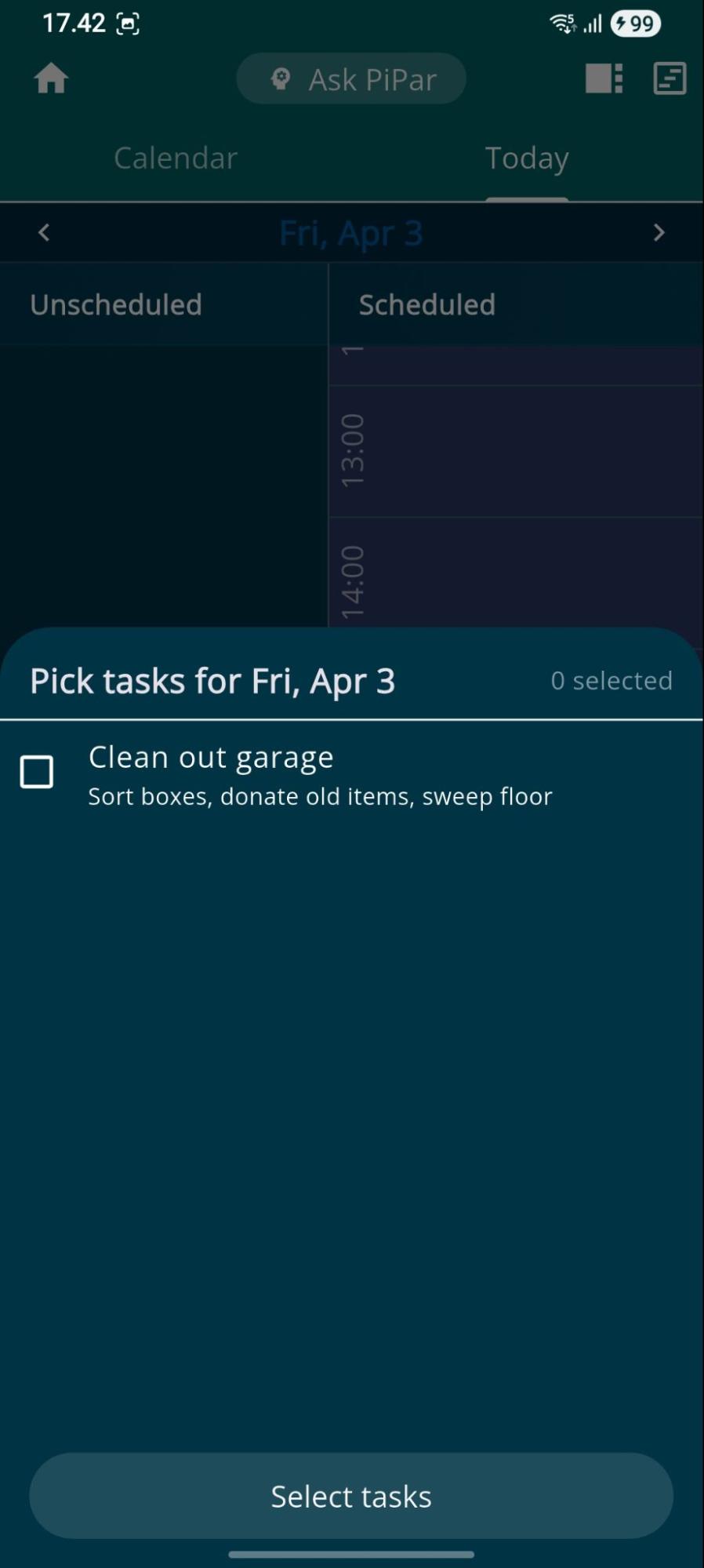
In day view the user can scroll the days, pick tasks from backlog (no due date) to the view (ol left column), allocate a project or task for time block (on right column) and alter order of tasks in the timeline via drag and drop. In a day view there is also a "Ask PiPar" button, which is used to ask PiPar to help ordering days tasks.


5.2. Time Blocking
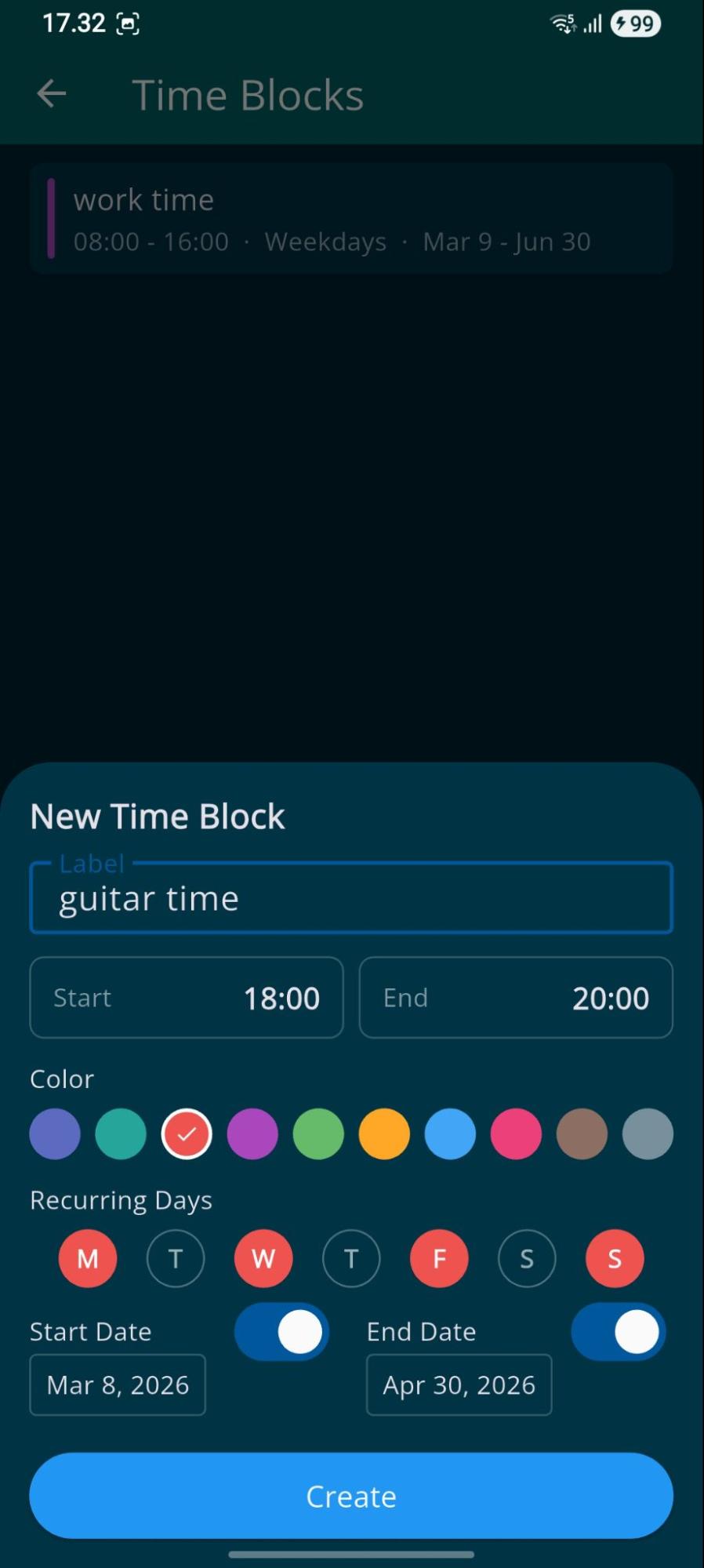
The user may define time blocks to help ordering and to focus tasks during the day. Timeblock window is accessed on "rectangle" icon on top left of screen (near the sync icon)


6. Notes
In the Notes screen the user can add, read and modify notes. There is a list and a grid view modes (accessed on top right icon), filtering based on note type (plain text, note with image, pdf or voice recording attached) and note owner (user, AI Persona, all) and sorting options.


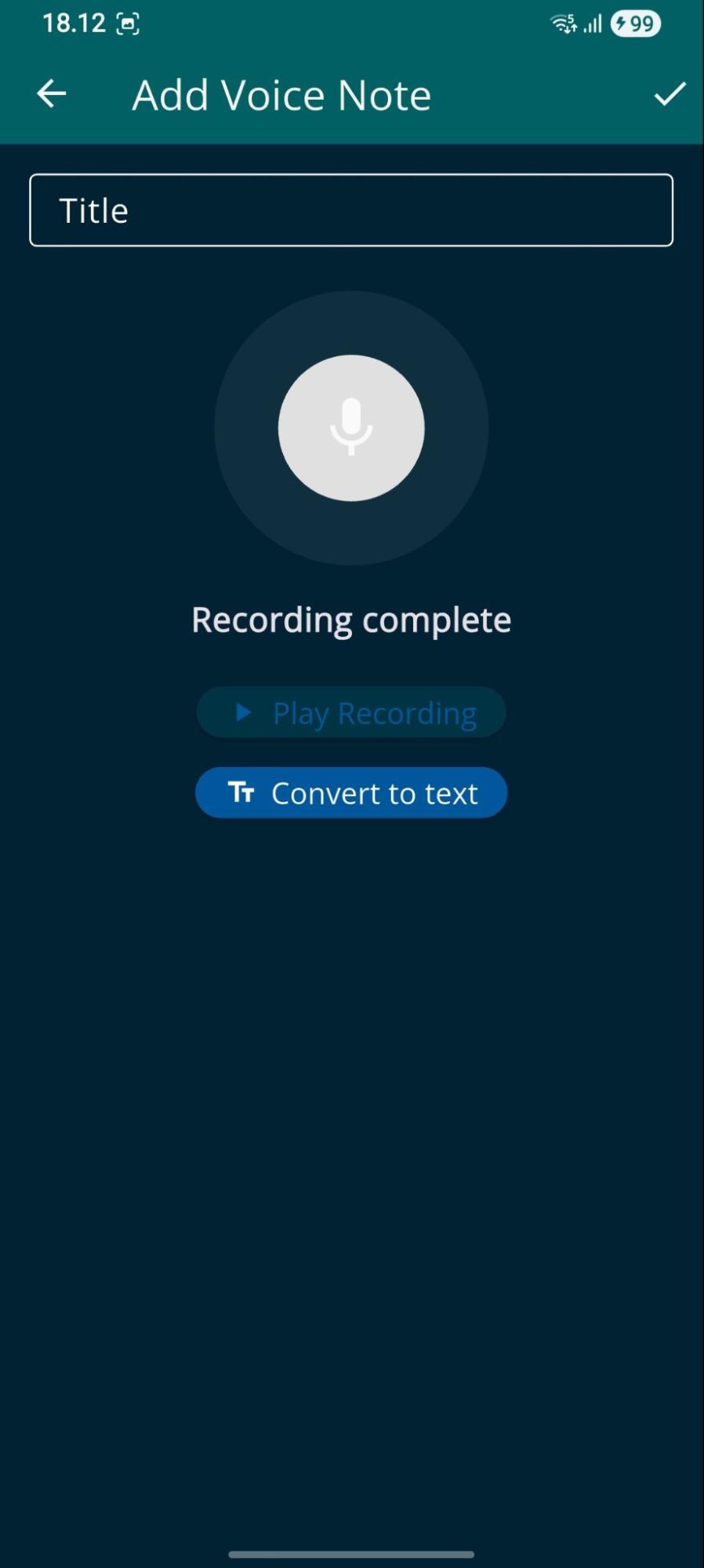
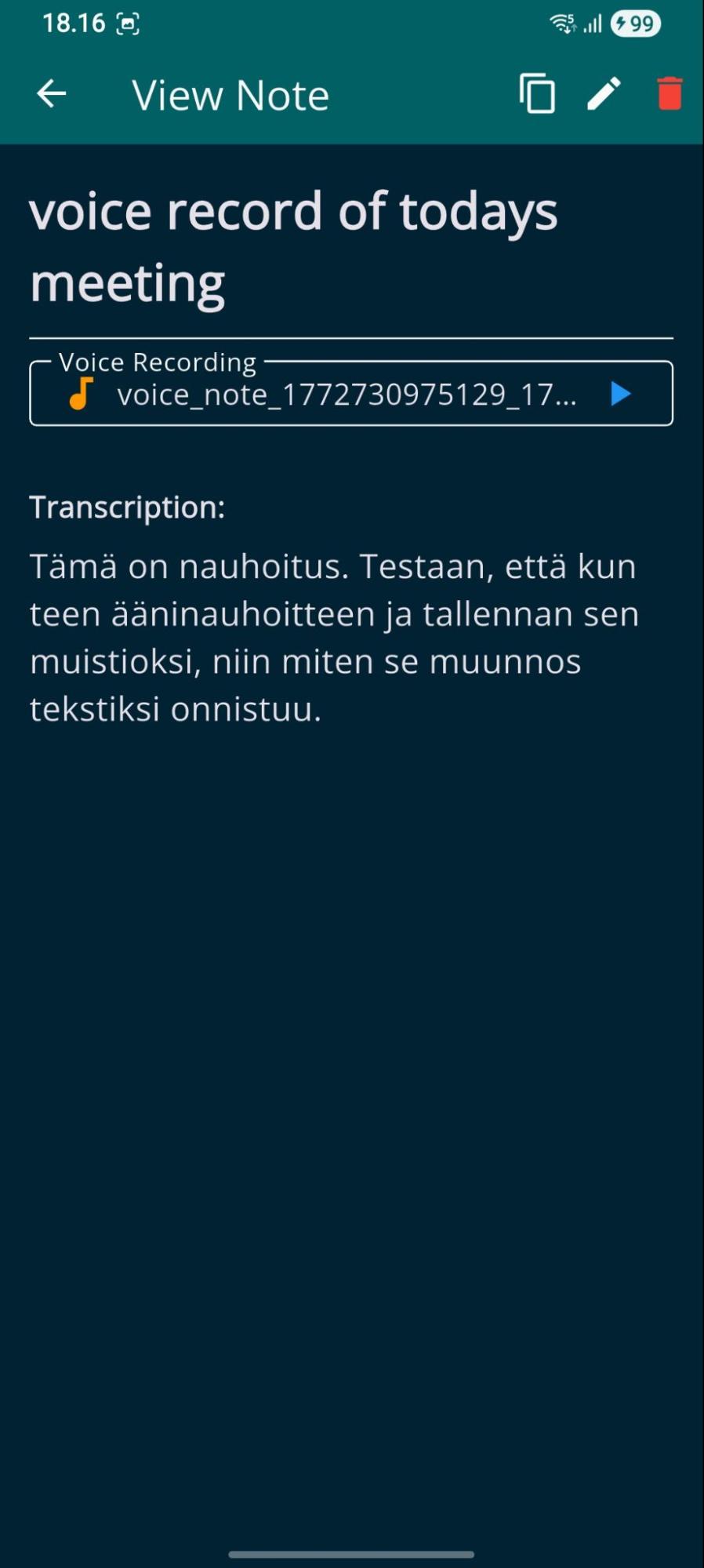
The user can create a text note with attachments (pdf, image) or a voice recording, which has a transcription option.

7. Files
The files screen contains
- tabs for documents and images created
- app browser (on top bar folder icon)
7.1 Documents Tab (Docs)
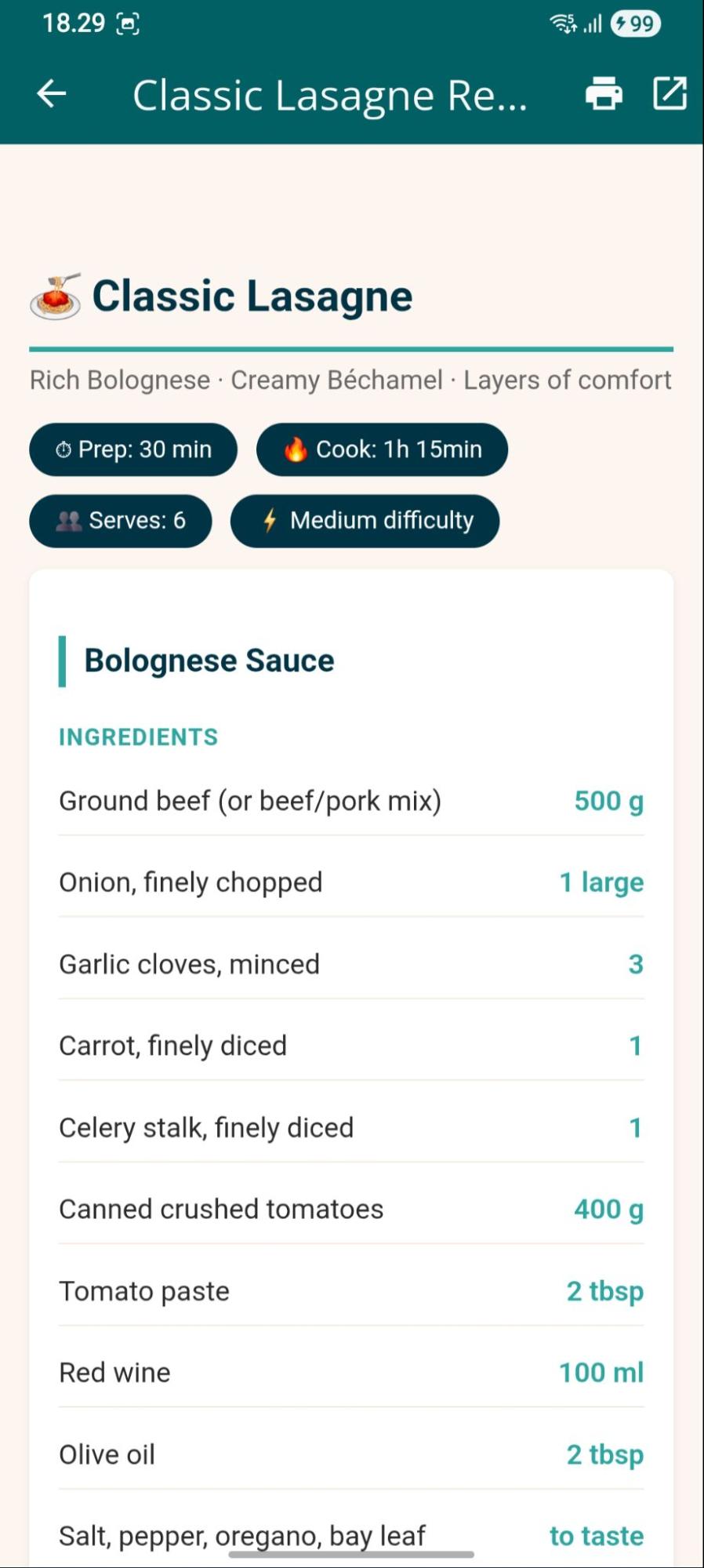
The document tab has a grid and a list views for documents, with sorting option.
There is an action menu containing functions for
- Editing and viewing document
- Displaying document details
- Opening in external application
- Sharing and exporting document (Save To Device)
- Creating a PDF with device printing tools
- Renaming and deleting document


7.2 Images Tab
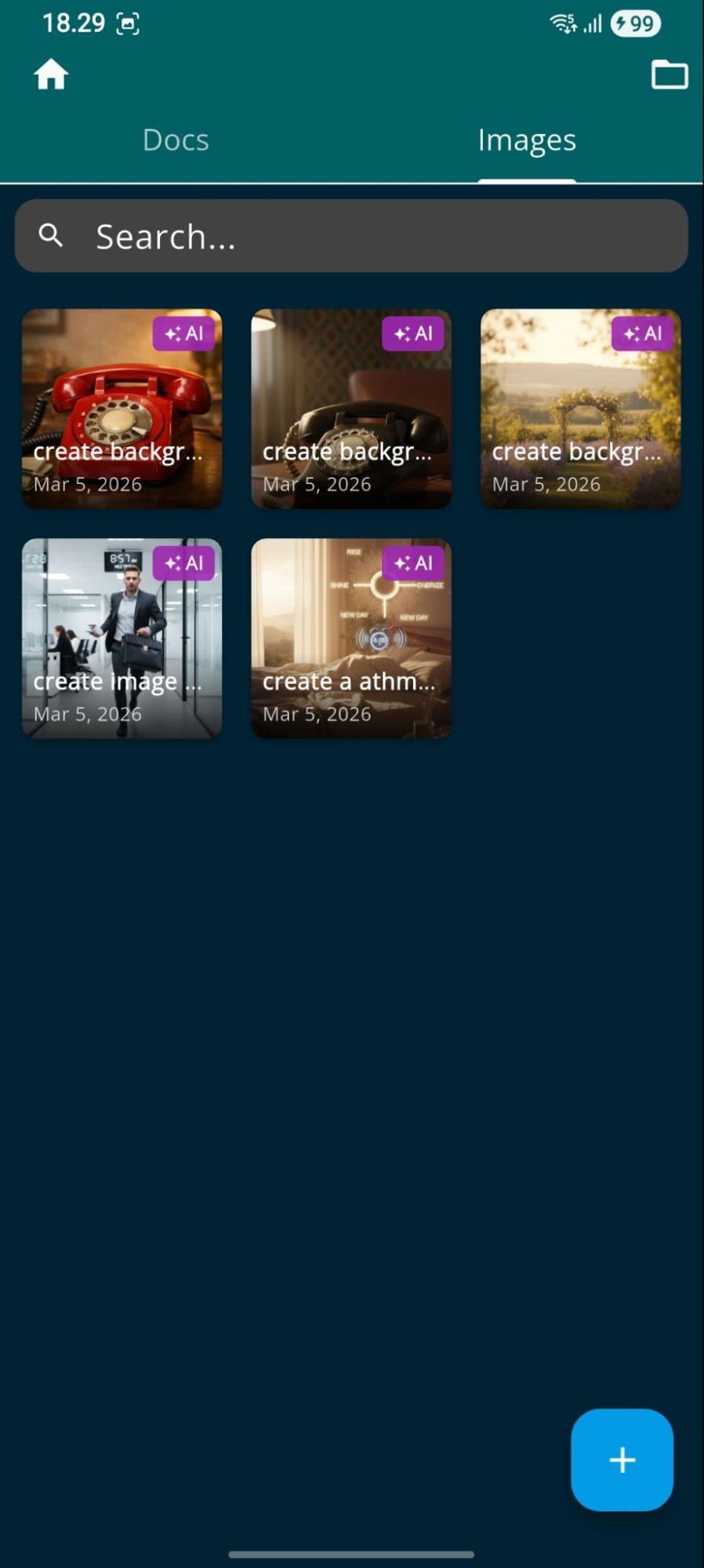
The images tab displays images created on the app. Short press on image displays image in full screen. Long press on image displays the prompt used for creating image and provides options for exporting image, sharing and deleting image.

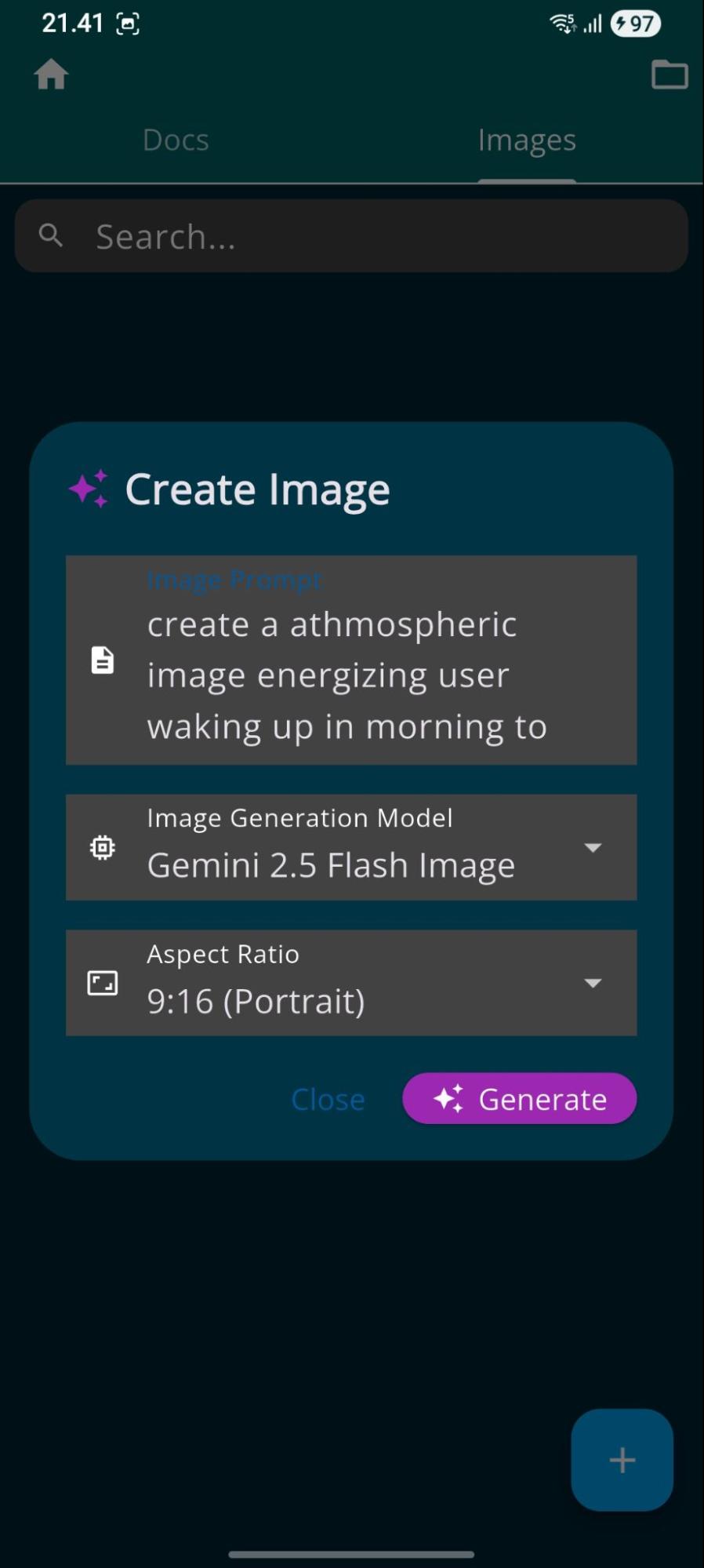
There is + button for opening image creation dialog, where the user can create images with selected image model and aspect ratio.
7.3 App Data Browser
App Data Browser contains views for managing ringing tones, background images and app data items.


8. Apps
The apps screen displays the list of apps created on the application. Short press on app starts it. Long press displays the action menu with options for starting app, displaying app info, sharing and removing the app.
There is also an option for importing app from device file system.


9. Box (Mind Wall)
A visual brainstorming board with sticky, quick post-it type notes.
User can create, delete and move the notes in the screen (drag and drop).


11. Calls
The calls screen contains a list of active calls scheduled with AI personas. The user can manually create new scheduled calls and control the state of scheduled call.


There is also a history tab for viewing past calls and a button for triggering morning briefing.

11. Alerts
The Alerts screen contains functions for creating and managing alerts.
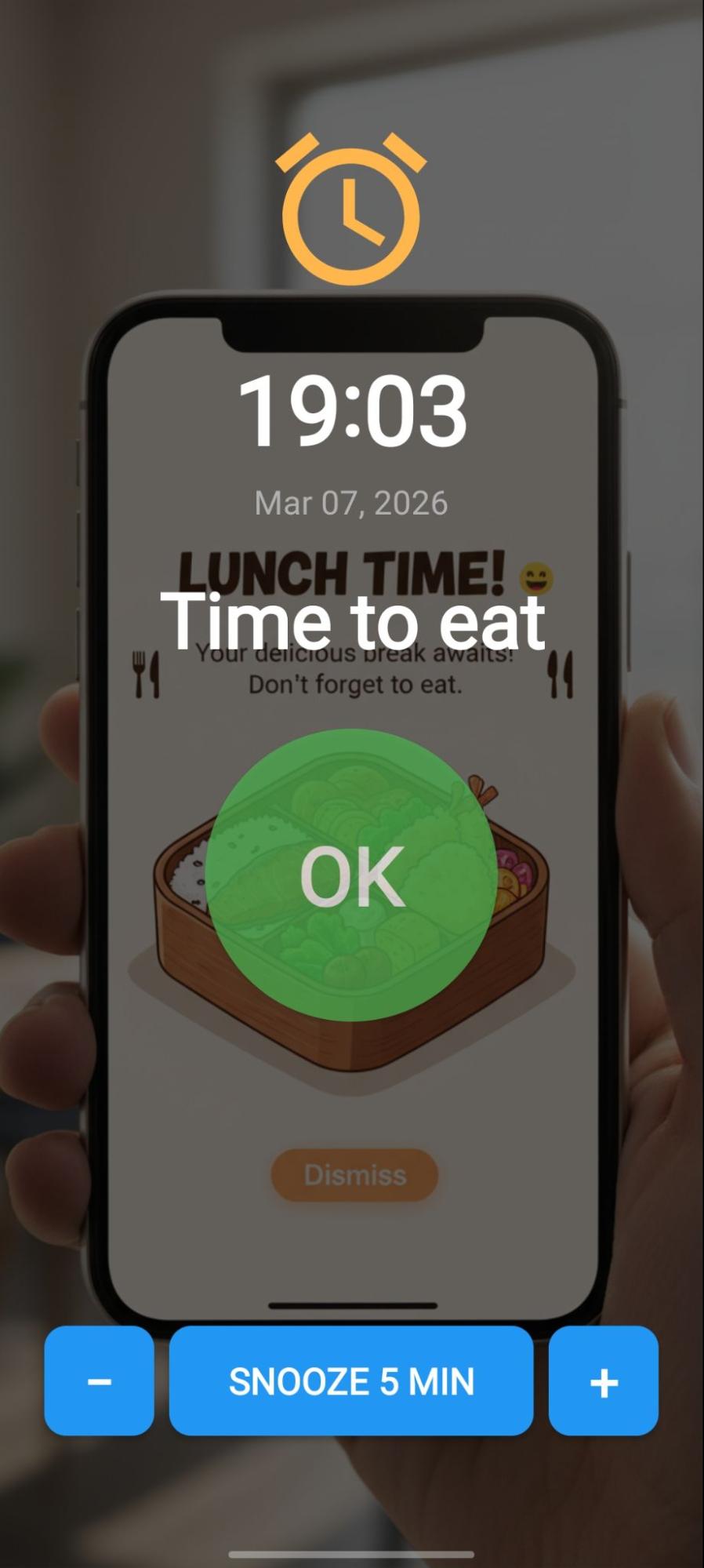
Alert system uses Android alert system, supports recurring alerts and displays full screen notifications when triggered with a snooze option. Optional note can be opened from notification.


12. Settings
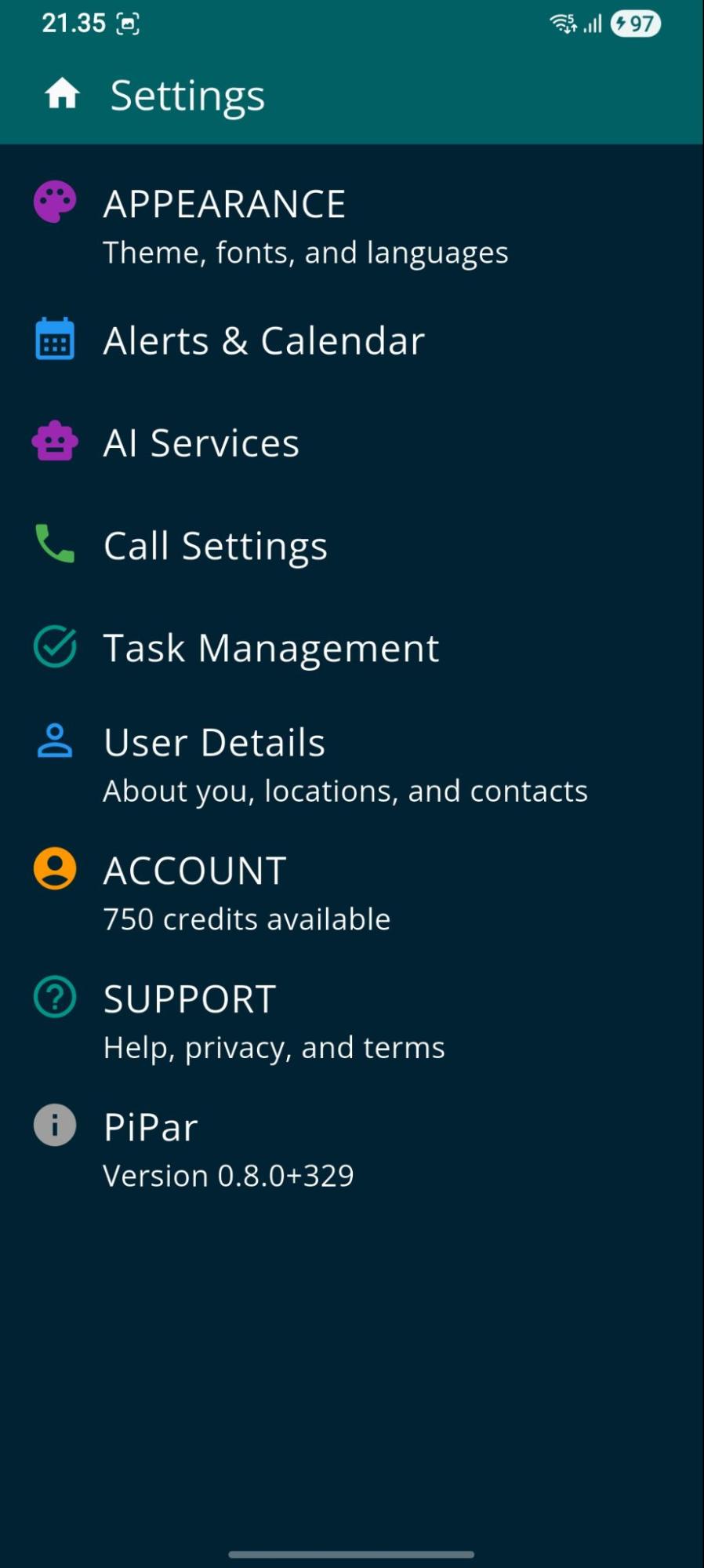
Main settings hub with sections for
- Appearance : color theme, font, language
- Alerts and Calendar settings
- AI Services : image generation, web search and voice recognition
- Call Settings : call style, ringing tones, Do-Not-Disturb
- Task Management : morning briefing, proactive reminders etc
- User Details : user details, locations
- Account : app data and subscription management
- Support : contact information, support pages etc
12.1 Appearance


The appearance menu contains settings for
- Theme selection: colors, dark mode and is persona specific theme allowed (selected from persona customization screen)
- Main view customizations:
- persona presentation style: single person or carousel visible
- navigation button style: texts or picture buttons
- Font type and size (affects only text chat)
- User Interface and voice call language selection
12.2 Alerts & Calendar Settings
Alerts and Calendar settings view contains customizations for
- Enabling Google Calendar sync, selection for calendar and first day of week
- Global alert tone, vibration, background picture and font theme
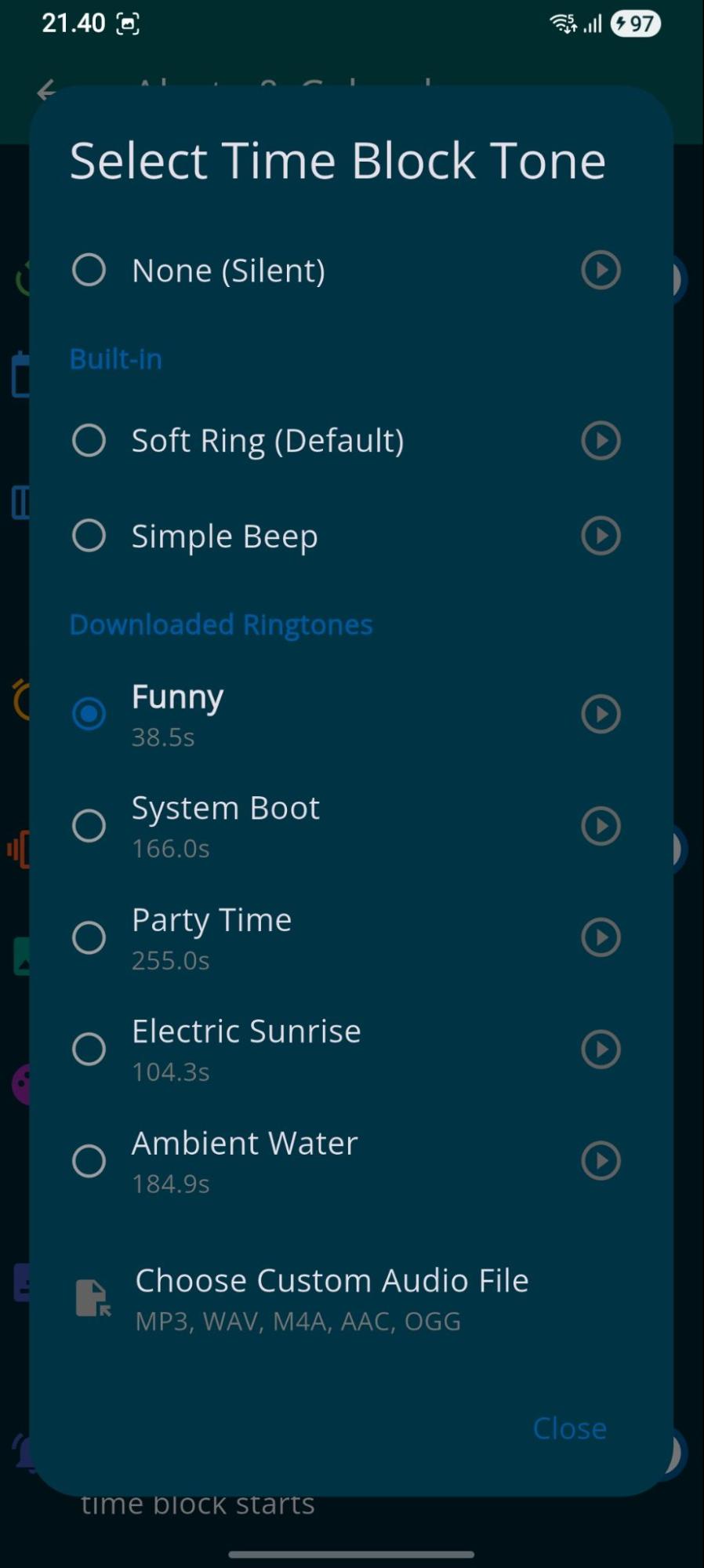
- Control the Time Block start indication tone and Android notification
Tones and pictures can be selected from the device or app gallery. The user can also define alert specific tones and background pictures.


12.3 AI Services
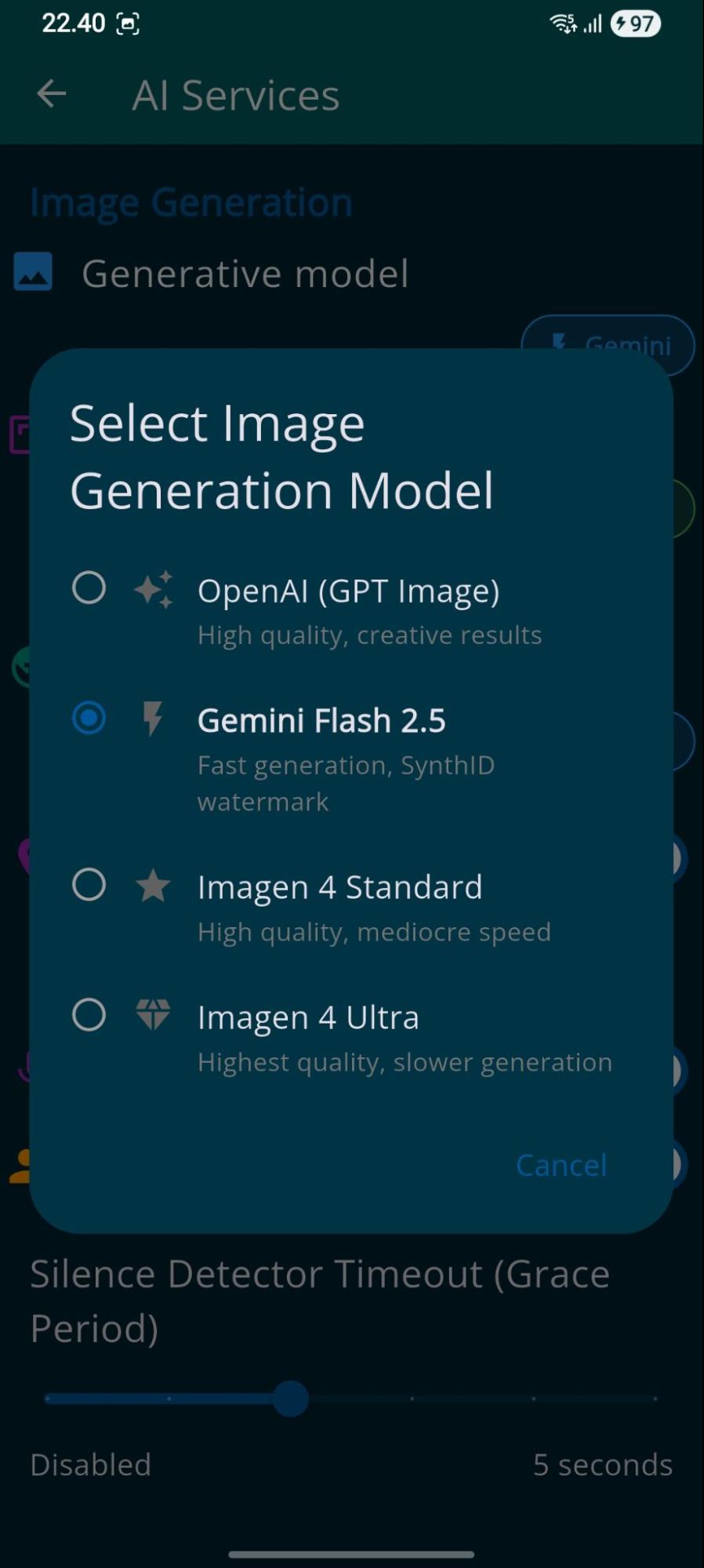
AI Services contains sections for Image generation, search and voice detection services:
- Several image generation models are supported and there is aspect ratio selection: 1:1, 16:9 and 9:16
- Web search service is available from Open AI and Google
- User location service controls, is user's location indicated to AI
- Voice Detection contains settings for
- Advanced voice activity detector (default)
- Is user able to interrupt AI speaking turn by starting speaking
- Silence detector timeout - how long user needs to be silent until AI turn starts. You can also end your speaking turn by saying "stop" (in english)


Note! If Advanced Voice Activity detection is disabled, manual voice level measurement is used (use it only in special cases):
- Voice Detection Level - if audio volume > threshold, user is speaking
- Silence Detection Level - if audio volume < threshold, silence is detected
- Automatic Noise Detection - in the start of call app measures background noise level and adjusts the thresholds
12.4 Call Settings
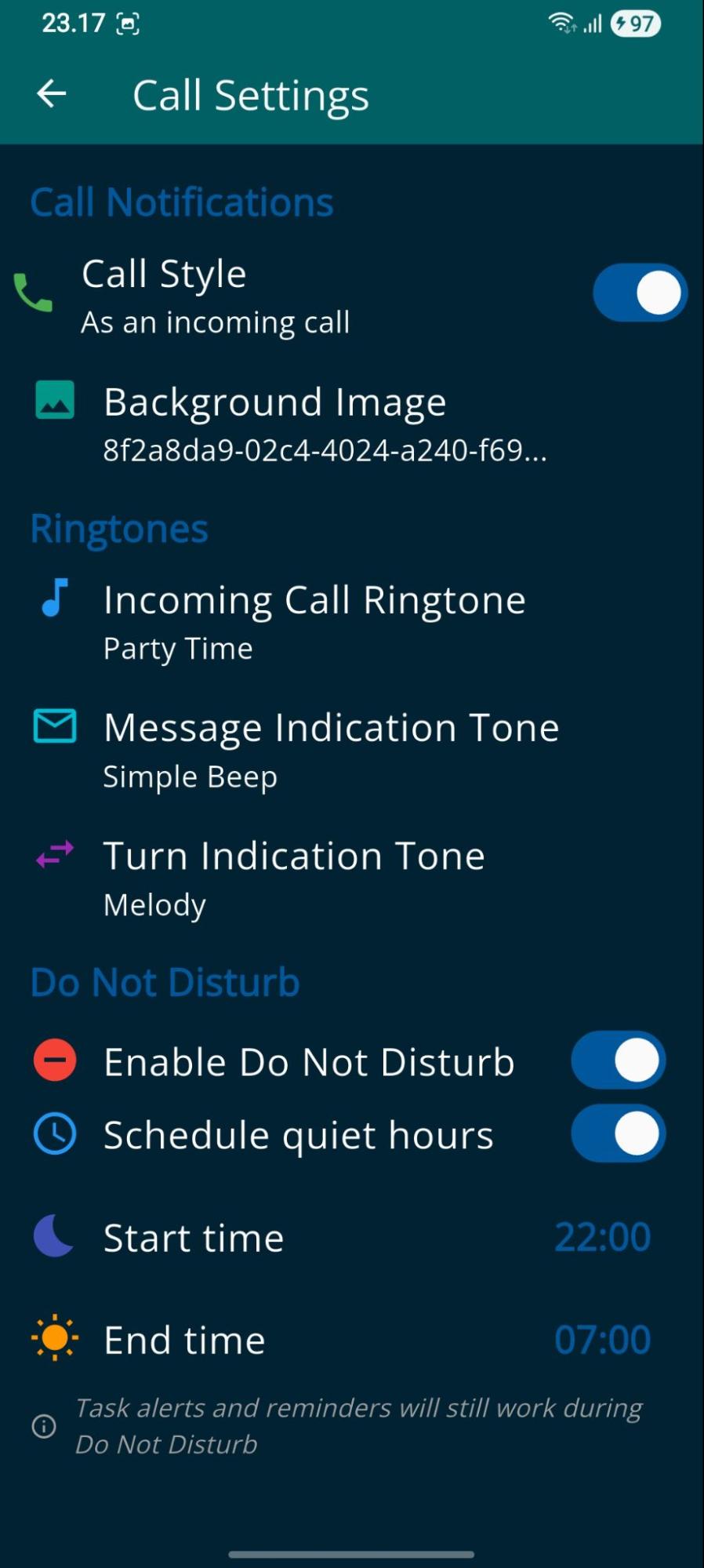


Call Settings screen contains
- Call style : is incoming call displayed as a full screen
- call notification with answer, call later and answer in chat
- message notification with snooze, answer and reject
- Selection of ringtones for call and message notification
- Turn change tone - played when user or AI turn changed (useful for cases when user is not looking the screen during the voice call)
- Do Not Disturb - prevents incoming calls
- Quiet hours limits the time when DND is active, for example at night
12.5 Task Management Settings
The task management screen has controls for
- morning briefings
- task scheduling algorithm
- background processes managing user's tasks.
The task scheduling algorithm controls automatically sorting of the tasks based on priority or is manual sorting enabled (drag and drop) on the task list.
Background monitoring is executed one or more times a day and it analyses user's overdue and postponed tasks, future events, calendar events and received mails for proactive notification. If there are calls or alert notifications triggered by the process, they occur during the monitoring period.


12.5.1 Morning Briefings
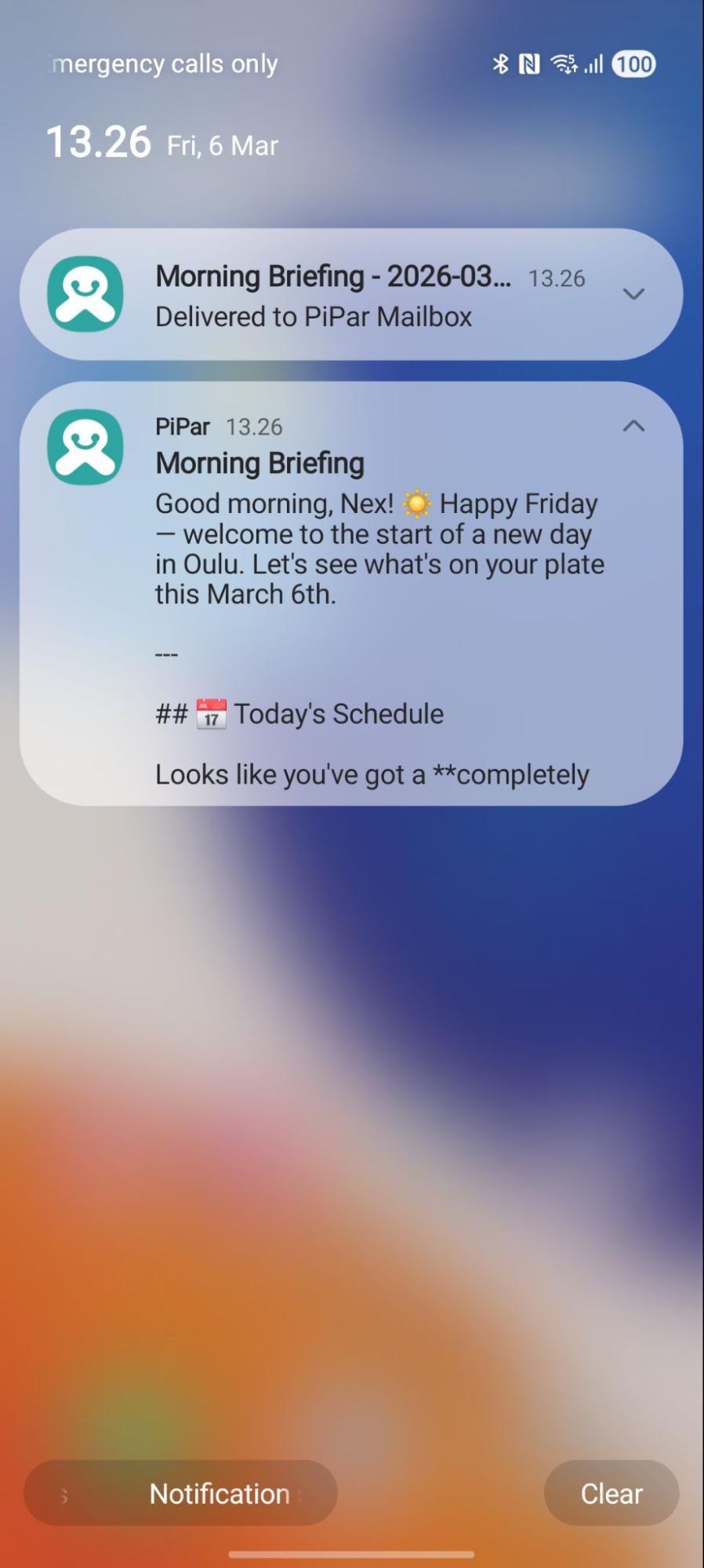
Morning briefing is a background process, which triggers once a day in user defined time. Briefing process collects user's unread mails, calendar events and tasks planned for day. Collected information is processed by selected AI persona and morning briefing material is created. The user can also define web searches and custom instructions to be included in Morning Briefing preparation.
The user can select is briefing material sent to user's selected mailbox (either to gmail or to user's PiPar mailbox) and the notification method when briefing material is ready:
- Selected AI person calls to user
- Android native notification is triggered and user can take the morning briefing call by clicking the notification
- No notification
It is also possible to manually trigger morning briefing from the Call window.


12.5.2 Check-in Call
A check-in call from PiPar to the user can be enabled to trigger, if the user does not chat or call any of PiPar personas for X days. Its purpose is to provide support in cases where the user is stressed up or too exhausted to manage daily tasks and would need a gentle push but does not have energy to be active. The check-in call is made during the Background monitoring range and not if DND is enabled from call settings.
12.5.3 Task Monitoring
Task monitoring is executed in the background and if some tasks are overdue, PiPar can remind the user either by calling or triggering alert notification. Call is used for notifying critical tasks, high and normal priority tasks trigger an alert.
12.5.4 Postpone Reminder
Postpone reminder triggers if the user continuously postpones a task or task is multiple days overdue. PiPar will call the user, if a critical task is postponed multiple times and try to find out if there is anything PiPar can do to help or motivate the user to start the task, which seems to be hard to start. An Alert is triggered for high and normal priority tasks postponed. The user can define the amount of days required for triggering a reminder for critical, high and normal priority tasks. Low priority tasks newer trigger reminder.
12.5.5 Proactive Reminders
Proactive reminder is triggered by background processing to notify the user about future events or tasks requiring preparation time before the deadline.
For proactive reminders, the app logs the future events containing events or tasks the user has discussed with AI persona, analyses received mails in addition to tasks and calendar events. During the background processing cycle AI personas process these items and call the user if there seems to be a need to notify the user about events that might have not been noticed.
The user can define how many weeks in advance are included to the analysis and give custom instructions (for example what things should be reminded most eagerly).

12.6 User Details


The User Details screen contains action for defining global user information, which is told to every AI persona about user: name and any other information the user wants to tell.
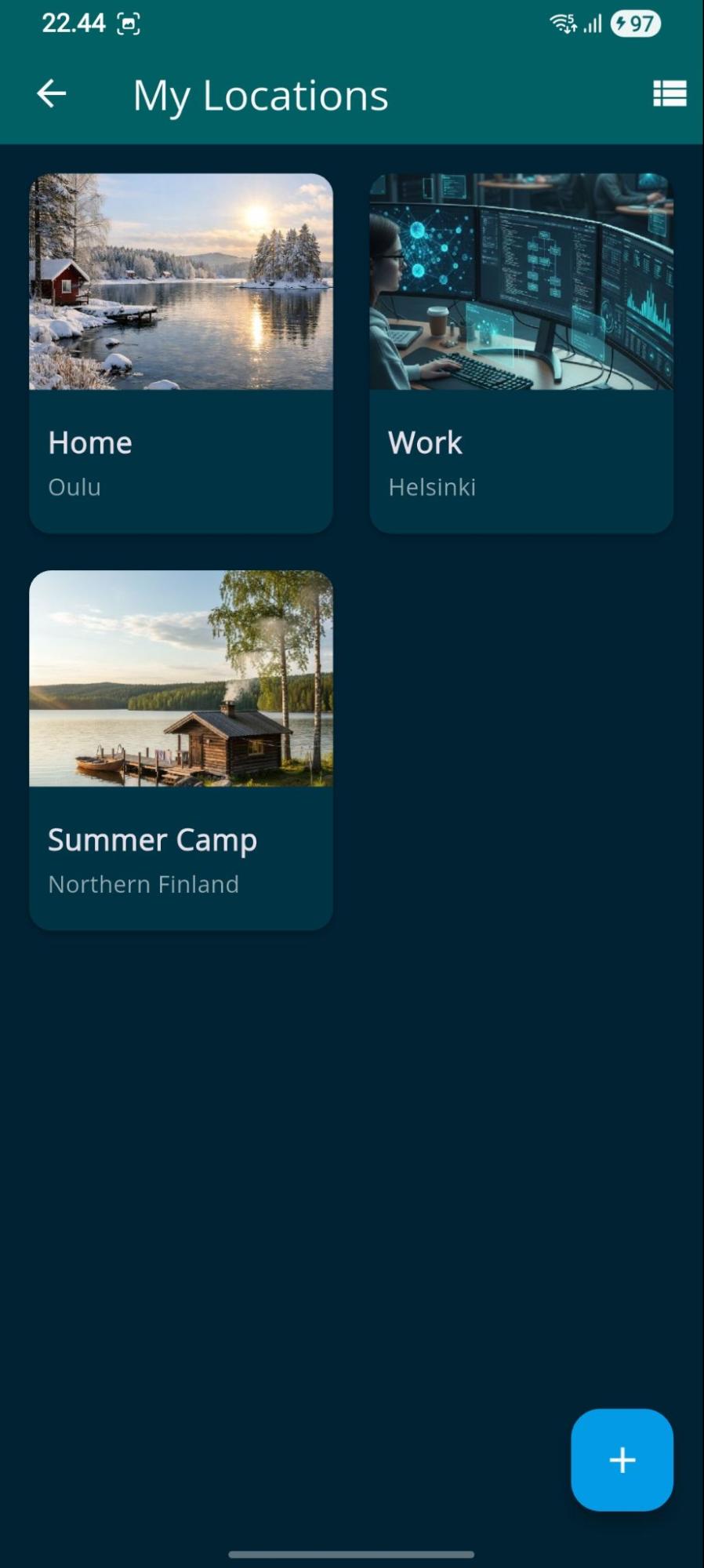
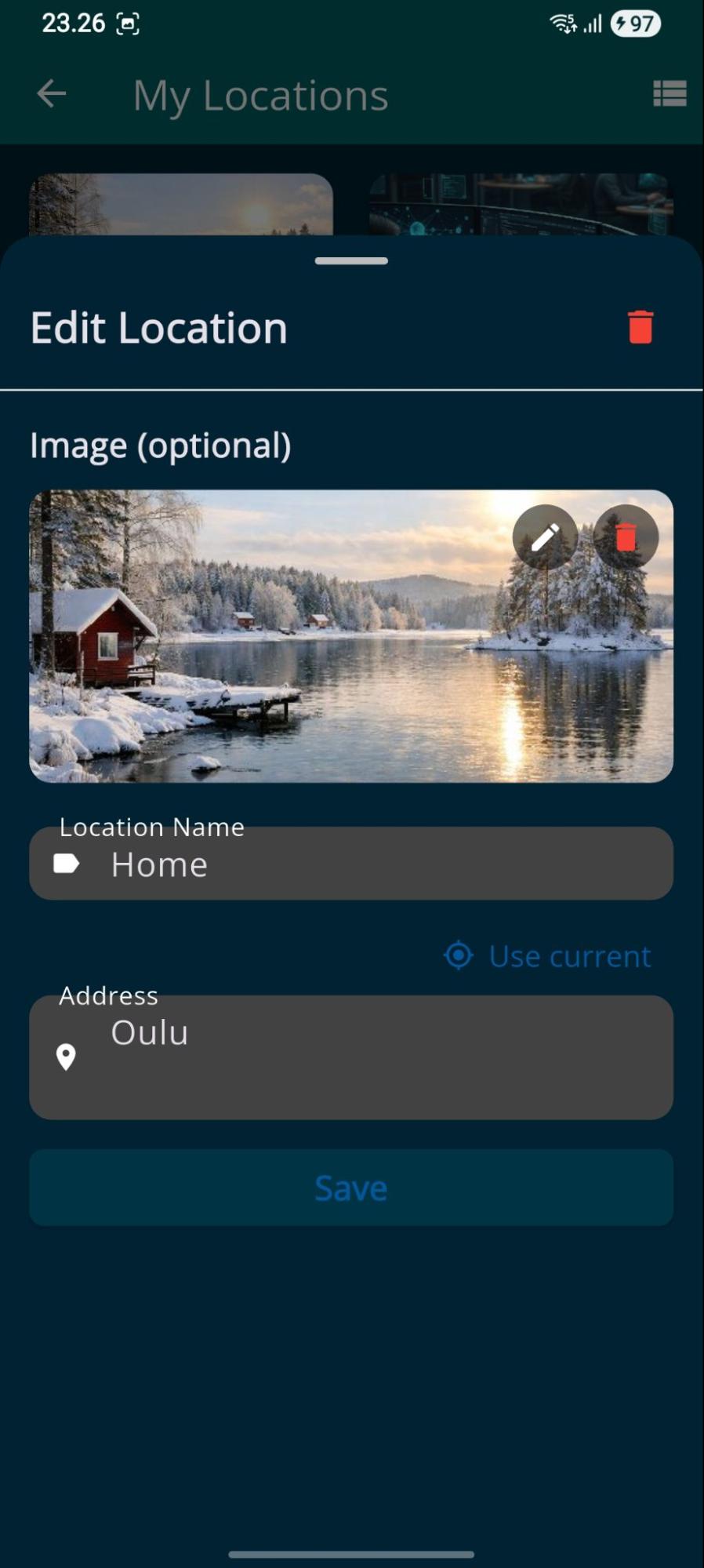
There is also an operation for managing user's locations, which can be included to chat, tasks or calendar events. The user can define name, address and add a picture to location. There is also an option to get navigation information from the phone's location service using "get current".
12.7 Account Settings
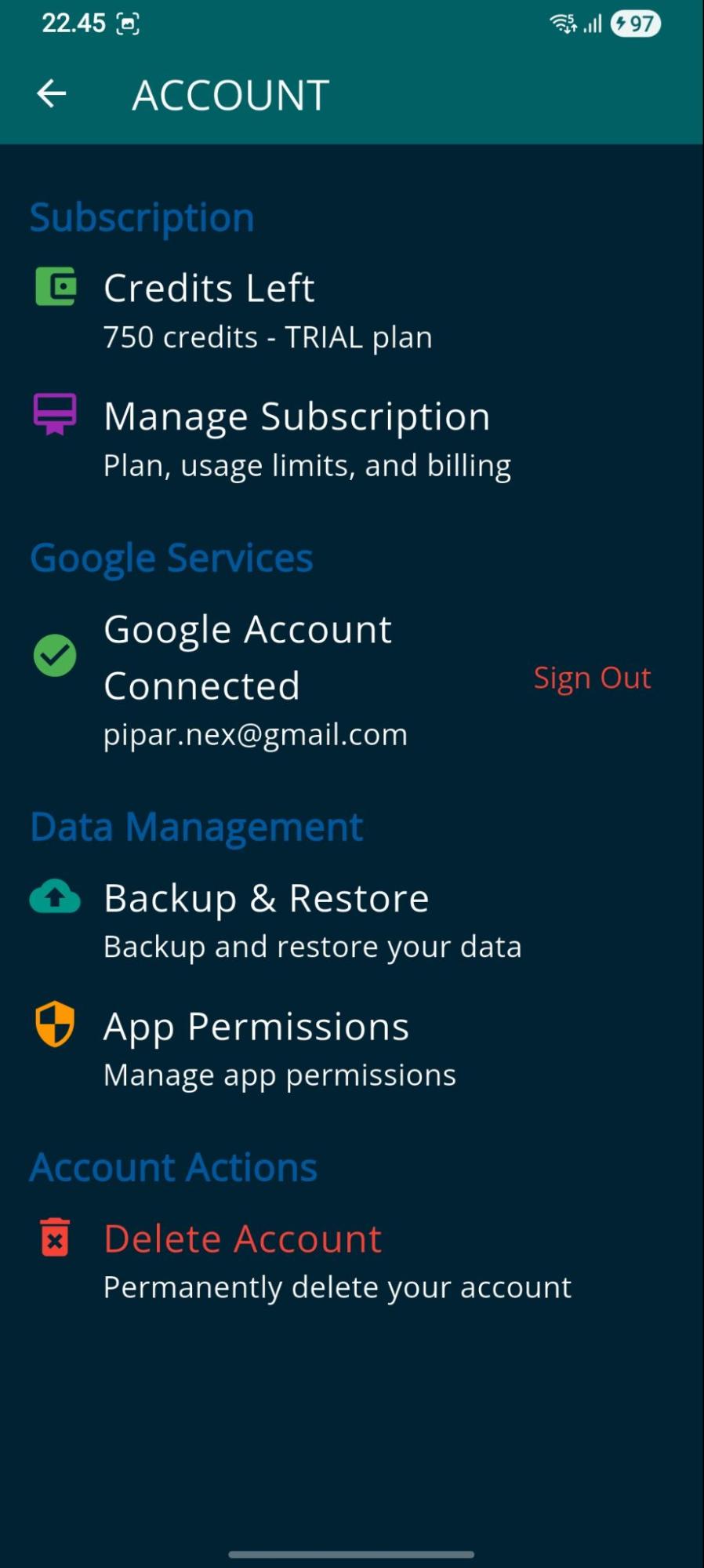
Account Settings contains
- Information about user's subscription and credits
- Google Account used
- Access to subscription management screen
- Application data backup and restore functions
- Application permission management
Backups are stored to google drive or locally, the application keeps 2 most recent backups.
Account settings contain functions for deleting user's account and/or all application data.

12.8 Subscription Management
Subscription management screen contains functionality for
- Managing current subscription
- Buying more credits
- Analysing the usage breakdown
- Redeeming a gift coupon


12.8 Persona Customization
Access the Persona Customization screen by clicking profile picture on the Main screen and select "Customize". Note! The user has more options for Custom persona: name and role, voice vibe / style are customizable.
The user can change the AI persona profile picture (from Gallery), select custom theme (if global theme is disabled in "Appearance" settings, modify the call notification ringtone and background picture. The user can download more profile pictures from piparapp.com web site, from device gallery or ask AI to draw more pictures.


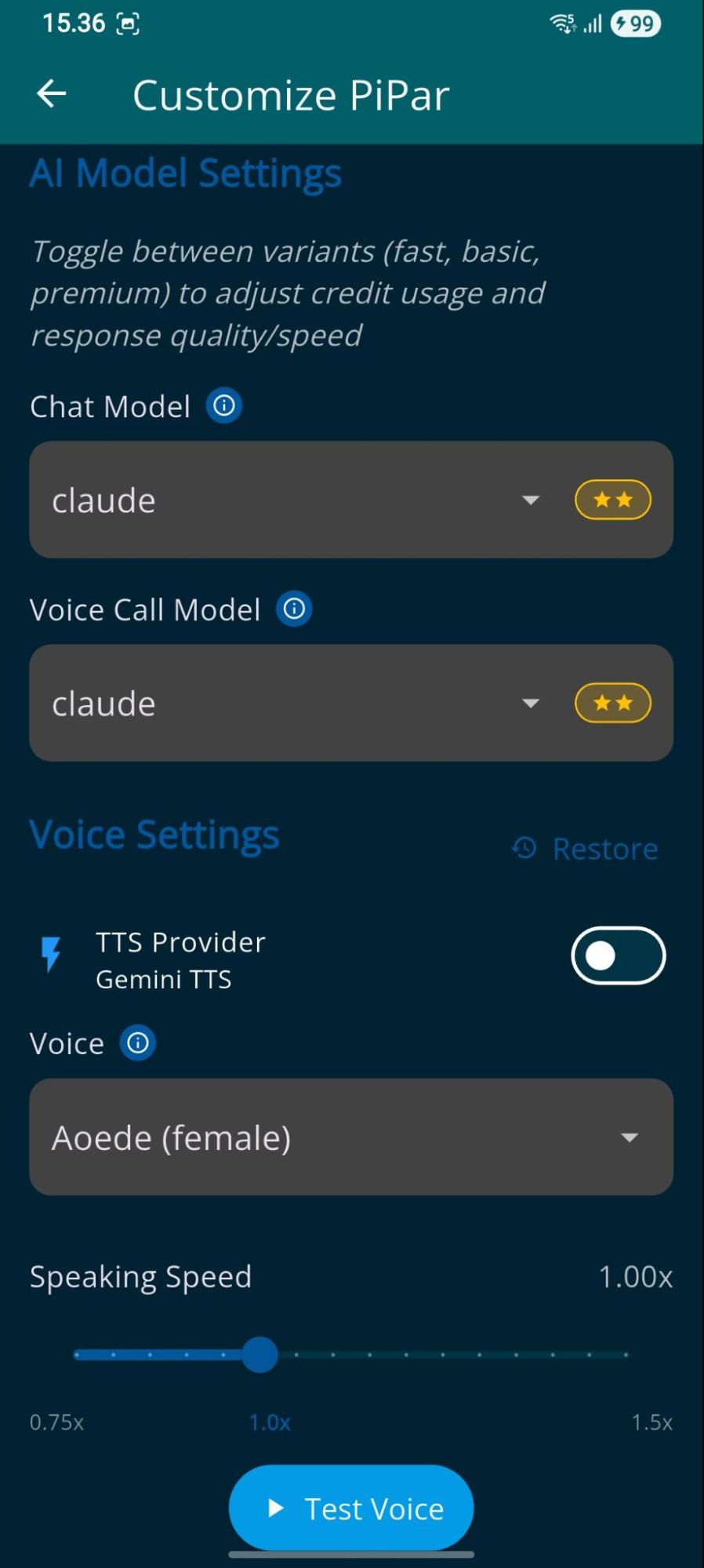
The customization screen has operations for changing the voice used for calls, speaking speed and AI models used for text chat and voice call (in case faster response times or cheaper model is wanted).
- AI models are grouped to model families (like Claude, Gemini) and model can be changed by clicking stars (*, ** and *** = most intelligent and expensive)
- There are two voice model services (TTS, Text-To-Speech) available both having different voices: Gemini and OpenAI


'Automatic Memory Update' toggle controls, is AI persona's memory automatically updated after each text chat or voice call with new content received.
'Browse Persona Memory' button opens a new window, where the user can browse data AI Persona has stored: User Details, Future Events and Diary entries. The user can edit the contents. 'Revert' button on 'User Details' tab allows the user to return to the older version of the data set (user details, future events and diary).


